Curating knowledge
Convert PowerPoint to SCORM in minutes for free
Need a fast PowerPoint to SCORM converter? Learn how to turn PPT files into LMS-ready training in about 15 minutes.

Ryan Macpherson
Jan 5, 2026

Editor:
Stephanie Chan
Most PowerPoint presentations sit idle. Stored in shared drives. Shared as attachments. Opened once, then forgotten. A PowerPoint file can’t track progress, record quizzes, or plug neatly into your learning management system.
But teams still rely on these decks for real online training.
And that’s where the friction shows.
You search for a free SCORM converter. Every option looks promising until the trial ends, the watermark appears, or the price climbs into enterprise territory. All you really need is a simple way to convert PowerPoint to SCORM so people can learn, and you can measure it.
Turning a deck into a SCORM-compliant course unlocks what PowerPoint can’t:
Track completion and progress
Add quizzes and interactive elements
Upload to any SCORM-compliant LMS
SCORM turns a static set of PowerPoint slides into training your team can actually use. And now, it doesn’t require expensive software or specialist skills.
How to transform PowerPoint Presentations to SCORM using Coassemble
Turning a PowerPoint presentation into a SCORM package doesn’t need complex software. With Coassemble, you can transform PowerPoint to SCORM in minutes. No installers, no licences, no watermarks. Just a clean, fast path from PPT files to a SCORM-compliant course.
Here’s how to do it using Coassemble’s free plan.
Step 1: Go to Coassemble and click “Get started”
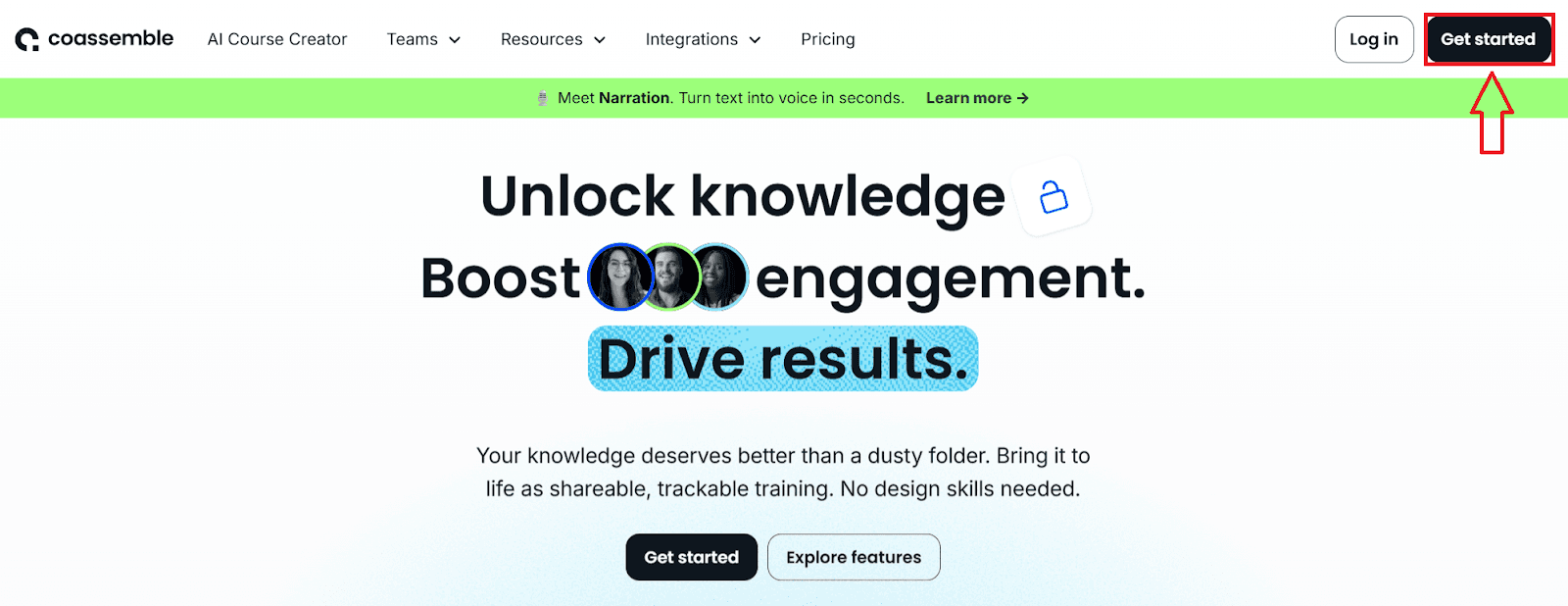
You can start building instantly.
Go to Coassemble.com and select Get started.
The course builder opens right away (no account required) so you can test how it handles PowerPoint slides before you commit. Click Start creating.
Step 2: Choose how you want to create your course
When the builder opens, you’ll see two options:
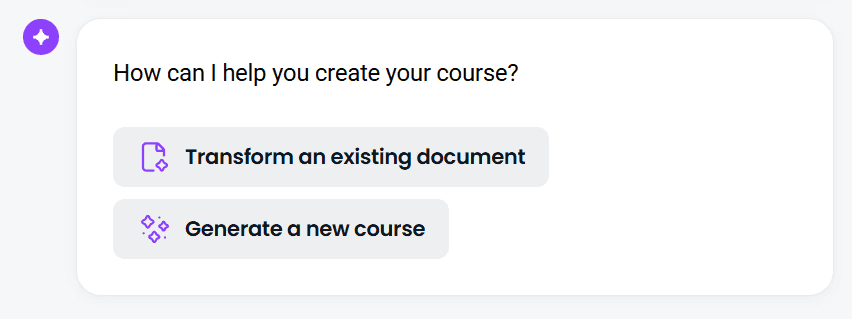
Transform an existing document (recommended)
This option doesn’t just import your slides. It reshapes them using learning-design best practices so your training works better online.
Upload your PowerPoint file (PPT or PPTX). You can also upload PDFs or Word docs.
Coassemble’s AI scans your content and restructures it into lessons, quizzes, and interactive elements designed for real learning.
The content is not word-for-word. The AI rewrites, reorganizes, and simplifies where needed so the flow makes sense for online learners.
Ideal when you want your deck to become a clear, engaging eLearning course, not just a slide replica.
This is the recommended path because it produces training that reads better, feels cleaner, and supports stronger outcomes, without manual instructional design work.
Generate a new course
Start from scratch and let AI build the outline.
Useful if your PowerPoint presentation is outdated and you prefer fresh content.
For SCORM conversion, choose Transform an existing document and upload your deck.
Step 3: Answer a few quick setup questions
Once your file uploads, you’ll see simple prompts such as:
What should your audience achieve?
Who is the course designed for?
Select the options that fit your team. These guide the AI so your course is shaped around your audience’s needs and built with clearer structure, better flow, and stronger learning design from the start.
Step 4: Watch the AI generate your course
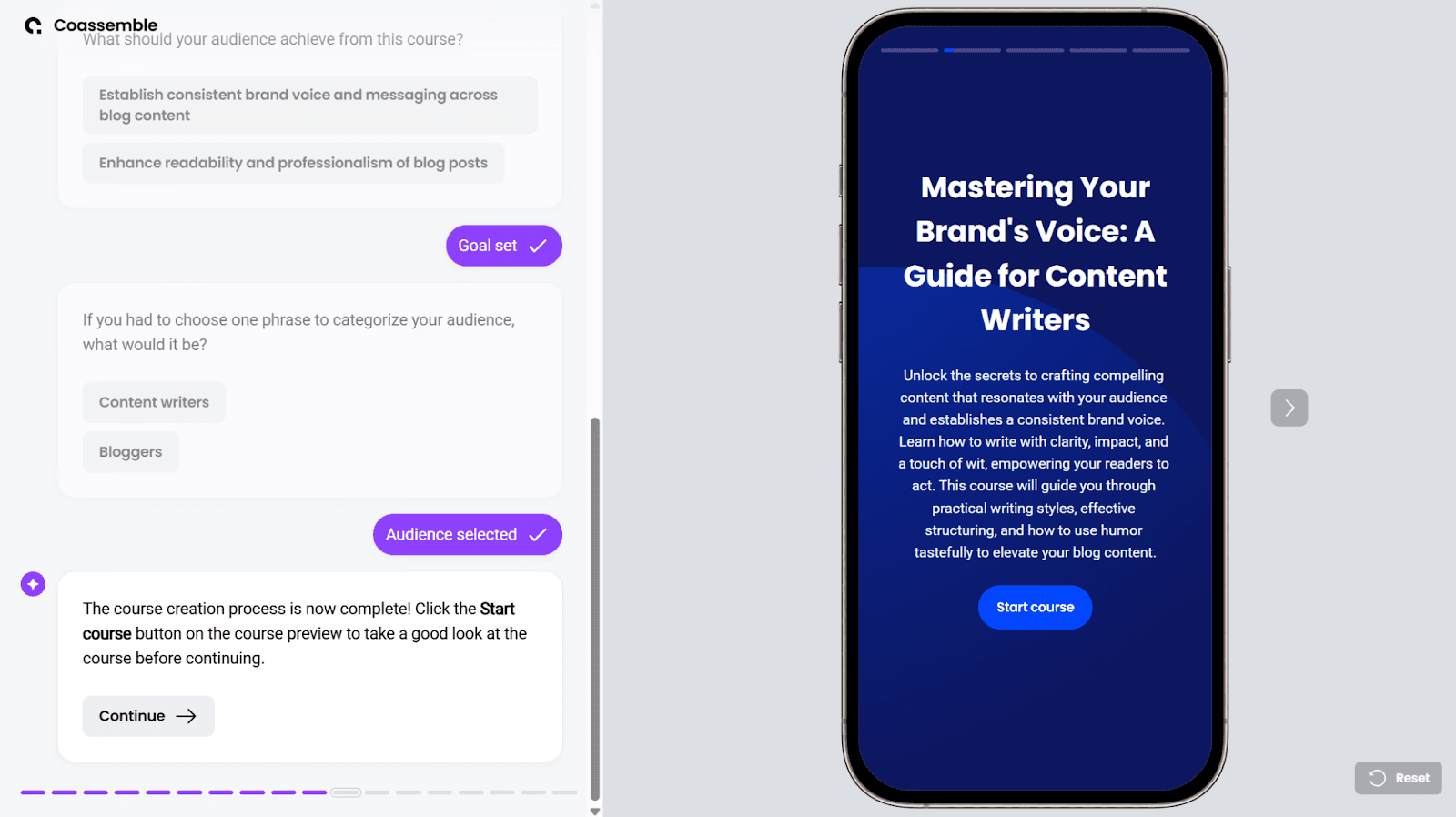
The AI begins transforming your PowerPoint to SCORM-ready content instantly.
In seconds, your course appears on the right side of the screen. Review it with a quick pass:
Do the instructions make sense?
Does the flow follow your original intent?
Are there places where learners might get lost?
Adjust any section. Edits update in real time. Add a quick quiz to boost learner engagement or refine the tone for clarity.
Click Continue when you’re happy with the structure.
Step 5: Choose how you want to share your course
Coassemble now asks how you want to publish your training. You’ll have three options:
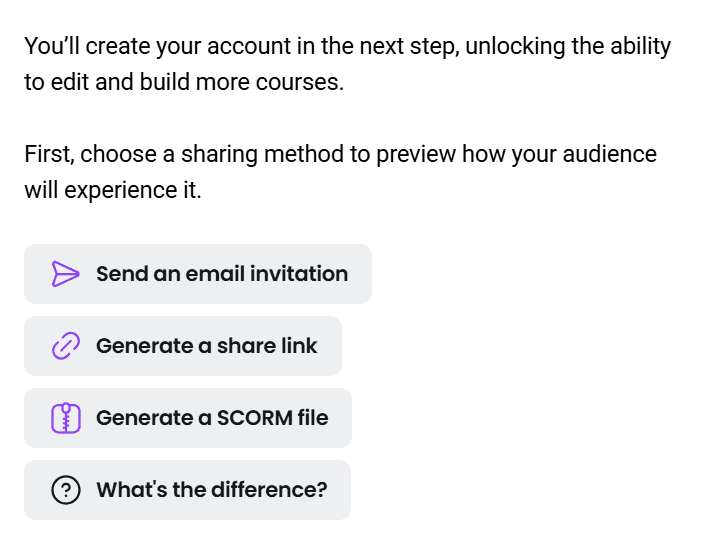
Send an email invitation
Generate a share link (Slack, Teams, intranet)
Generate a SCORM file for your LMS or HR system
Select Generate a SCORM file.
Enter your email address to receive a SCORM file of your course you can import into your LMS.
Step 6: Download your SCORM package and sign up for free
Click Download SCORM object to download your file.
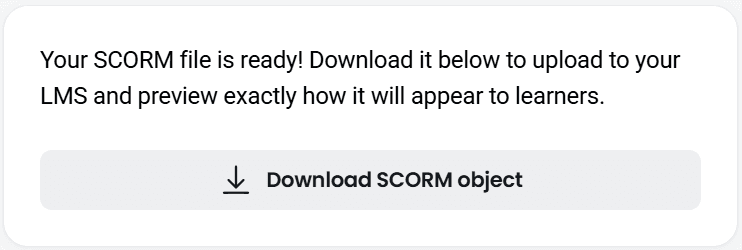
To keep the SCORM file active beyond the trial period, you’ll need to create a free Coassemble account. If you don’t sign up, the SCORM file will only remain active for a limited time.
Creating a free account unlocks full access to the platform. No credit card, no hidden limits. This also ensures your SCORM package keeps working wherever you upload it.
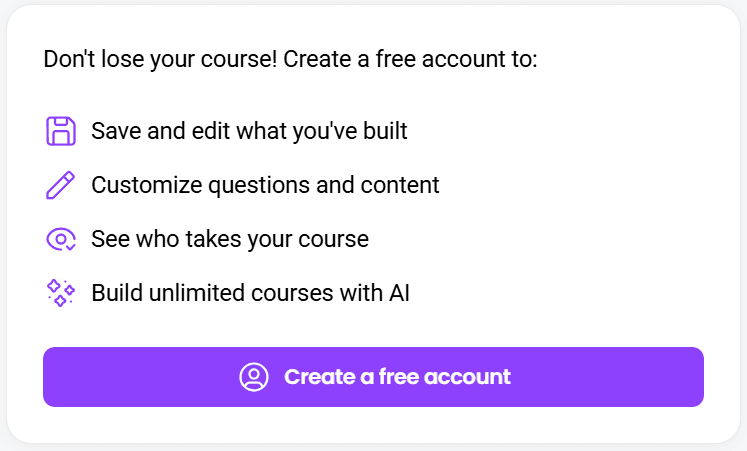
Once you sign up, you can:
Upload your SCORM package to any SCORM-compliant LMS
Track completion, quiz scores, and learner progress
Share using a simple link if you don’t use SCORM at all
Your free plan includes:
Unlimited course creation
Unlimited learner views
All AI tools
Everything you need to convert PowerPoint to SCORM without a paid authoring tool
This whole process takes about 15 minutes.
Compare that to the weeks spent learning traditional authoring tools or the thousands spent on SCORM converters like Articulate Storyline, Adobe Captivate, or iSpring Suite. Coassemble keeps the work light, fast, and accessible for any team.
Traditional tools to convert PowerPoint to SCORM
Most teams start their search for a PowerPoint to SCORM converter by looking at traditional authoring tools. These platforms are established, widely used, and built for advanced training needs. But they also come with higher costs and steeper learning curves, which can feel heavy if you’re simply trying to turn a PowerPoint file into a SCORM package quickly.
If you’re exploring the classic route, here are the main options and what they offer.
Articulate 360
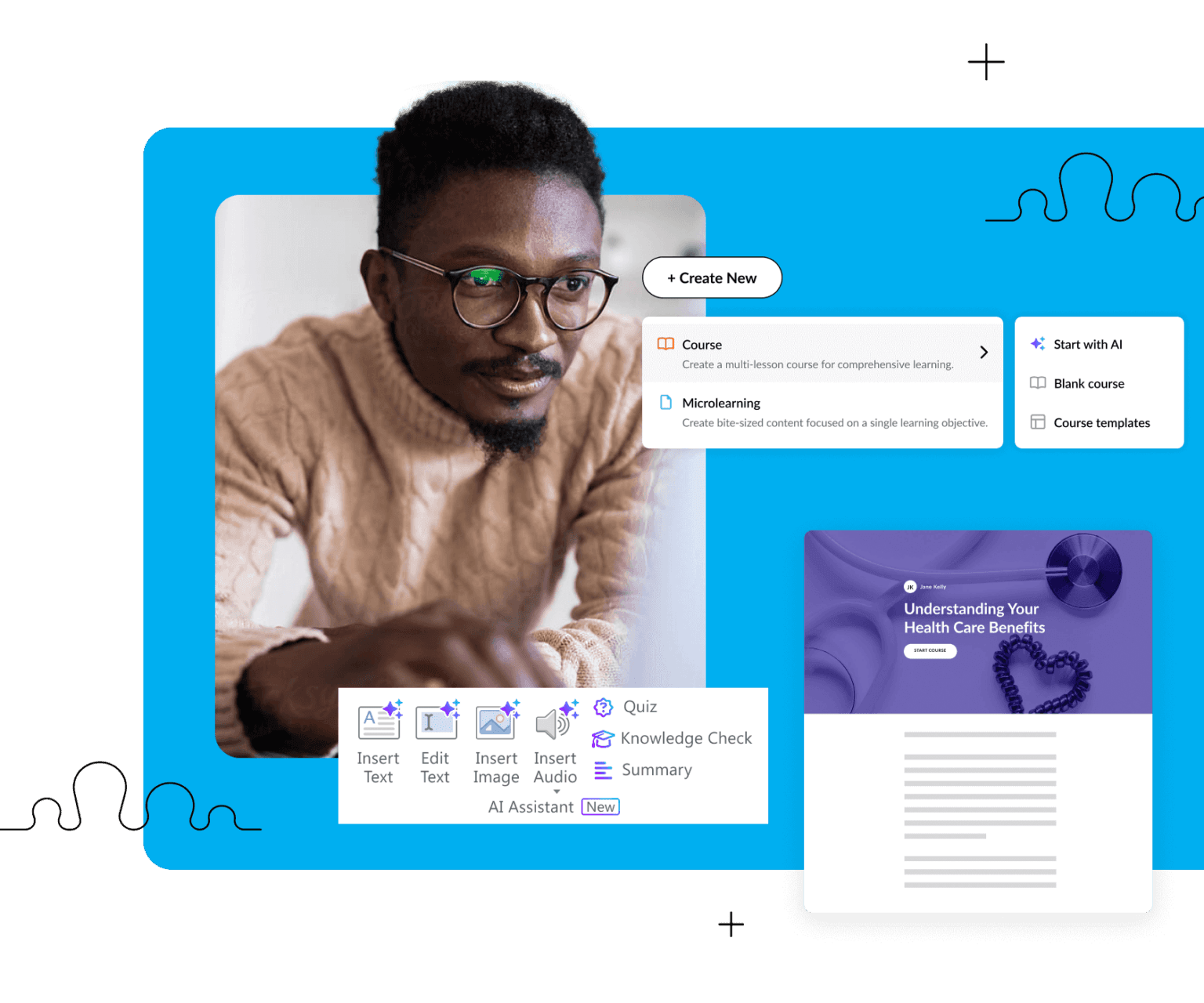
Image from Articulate
Cost: USD $1,499/year per user (individual plan, annual).
SCORM support: Full support for SCORM 1.2 and SCORM 2004.
Learning curve: Steep. Designed for professional instructional designers, not quick PPT to SCORM conversions.
Best for: Large L&D teams building advanced, multimedia-heavy eLearning courses.
Adobe Captivate
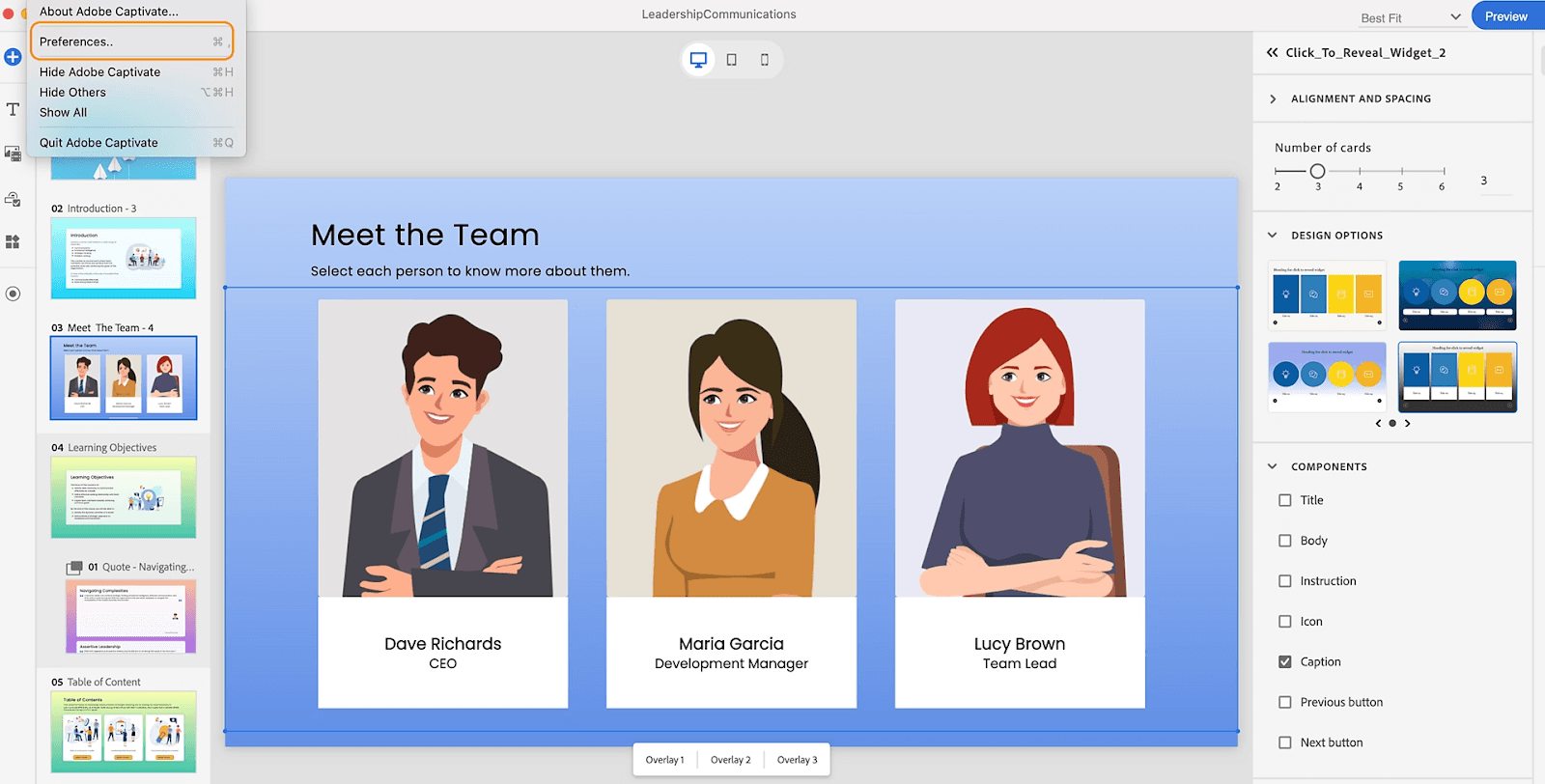
Image from Adobe
Cost: USD $39.99/month for individual users.
SCORM features: Comprehensive SCORM-format export, but best suited for complex simulations and interactive builds.
Learning curve: High. Captivate feels more like a full production environment than a SCORM converter.
Best for: Teams building simulations, branching scenarios, or highly custom learning content.
iSpring Suite
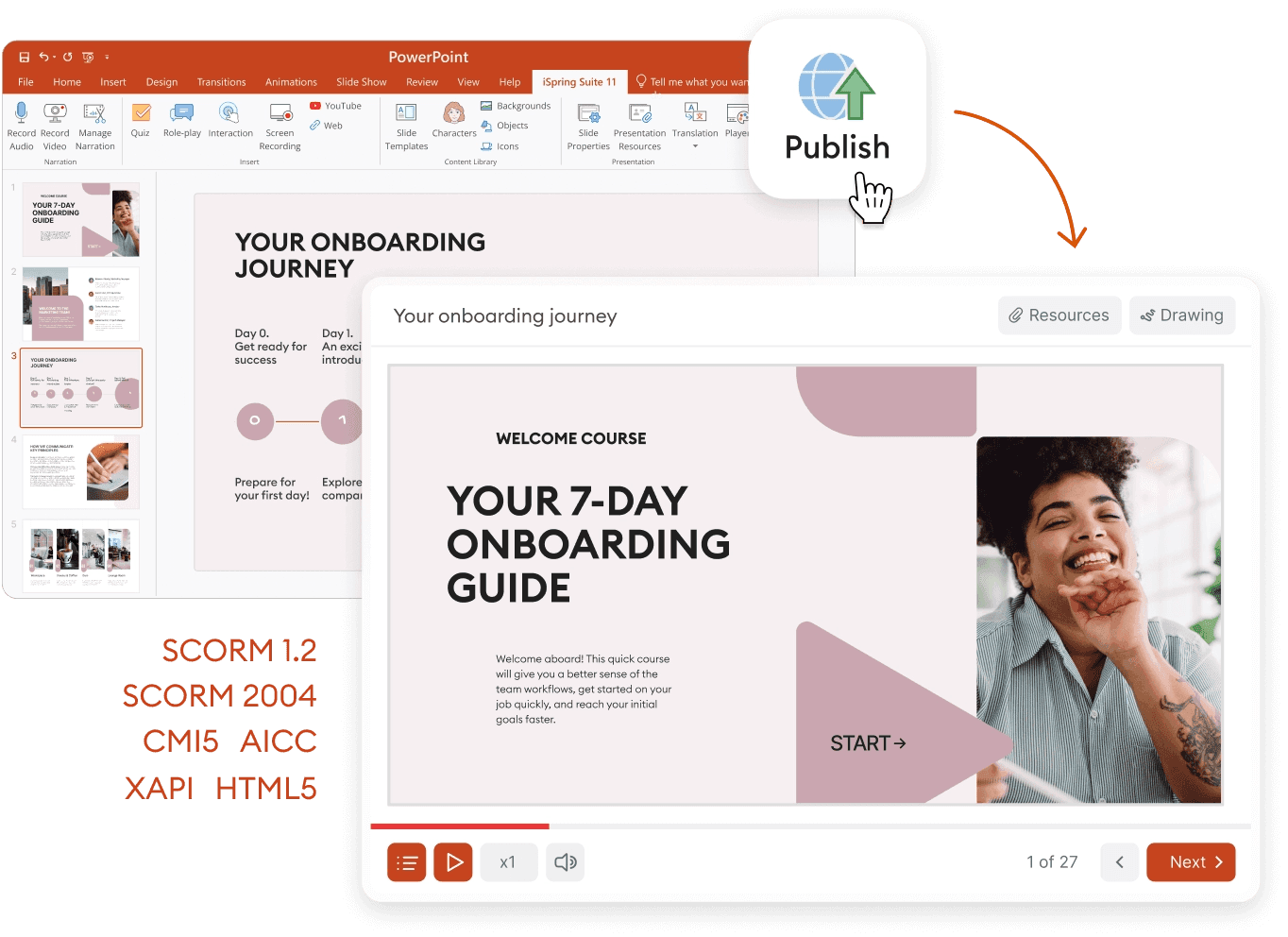
Image from iSpring
Cost: Starts at $970/year per author (iSpring Suite), up to $1,290/year per author (Suite AI).
PowerPoint workflow: Strong import options for Microsoft PowerPoint, but free versions often add branding or export limits.
SCORM support: Clean SCORM-compliant output in multiple versions.
Learning curve: Moderate. Still requires time to master.
Best for: L&D teams that already rely heavily on PowerPoint presentations and have the budget to upgrade.
Traditional tools can create polished, complex SCORM courses, but they’re not built for teams with no budget, limited time, or simple needs.
When you just want to convert PowerPoint to SCORM – fast, clean, and without a licence fee – these platforms are often too much for the task.
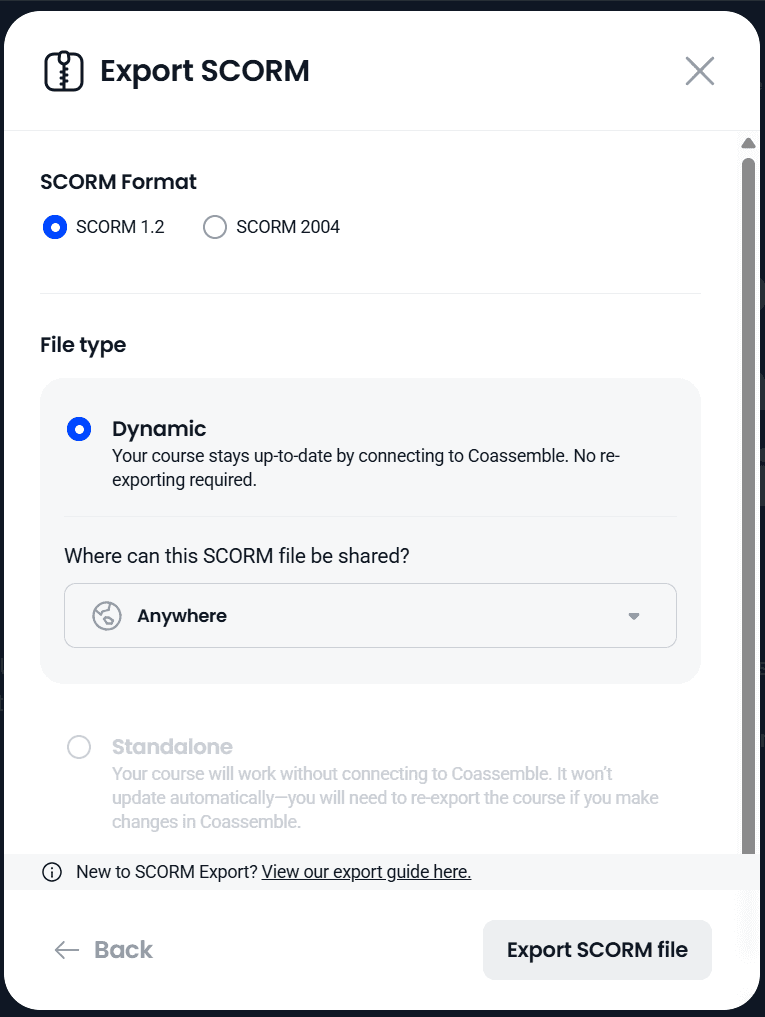
Understanding SCORM versions (1.2 vs. 2004)
You only need the essentials to choose the right SCORM format for your course.
SCORM 1.2
Most widely supported by LMSs
Easy tracking of the “Big 4”: completion, score, duration, satisfaction
LMS handles reporting
Best for simple PowerPoint-to-SCORM conversions
SCORM 2004
Adds deeper interaction data and longer suspend data
Supports sequencing and more complex course flows
Not supported by every LMS
Better for advanced, multi-step eLearning content
Quick rule: If you’re unsure, choose SCORM 1.2. It works almost everywhere.
Coassemble exports both versions with one click.
Beyond SCORM: modern alternatives
Sometimes you don’t need a SCORM package at all. You just need your training to move quickly, clearly, and without dragging your team into an LMS they rarely log into.
Here are faster options growing teams often choose instead.
Share directly without an LMS
Send a simple link
Drop it into Slack or Teams
Embed it in your intranet
Still track completion and learner progress
This keeps training close to where work happens, without relying on learning management systems to get people started.
When SCORM makes sense vs. direct sharing
Use SCORM when:
Your company already uses an LMS
You need clean records for compliance or audits
HR systems expect a SCORM-compliant file
Use direct sharing when:
You want the fastest path to delivery
Your team works in chat tools and email
You don’t need a full LMS workflow
Both options keep your PowerPoint presentations moving. SCORM helps you meet system requirements. Direct sharing helps your team learn without friction.
Wrapping Up
Converting a PowerPoint presentation into a SCORM package shouldn’t require a licence fee, a specialist, or weeks of learning an authoring tool.
With Coassemble, the work stays simple. Upload your PowerPoint file, let AI structure it into a clean course, and export the SCORM format your LMS needs. All on a free plan.
You can share training directly, publish it inside your LMS, or keep everything moving through the tools your team already uses.
That deck sitting in your drive already holds the knowledge your team needs.
Now you can turn it into trackable training in about fifteen minutes, and move it where it matters.
FAQs about converting PowerPoint to SCORM
What is the easiest way to convert PowerPoint to SCORM?
Using Coassemble. Upload your PowerPoint file, let AI structure the content, then export a SCORM package in one click.
Can I convert PowerPoint to SCORM for free?
Yes. Coassemble’s free plan lets you upload PPT files, create a course, and export both SCORM 1.2 and SCORM 2004 without limits.
Do I need an LMS to use SCORM files?
No. You can upload a SCORM file to your LMS or skip the LMS entirely and share the course link directly.
Should I use SCORM 1.2 or SCORM 2004?
Use SCORM 1.2 if you’re unsure. It works with nearly every LMS. Choose SCORM 2004 only if you need advanced sequencing or deeper tracking.
Can I still edit my course after converting to SCORM?
Yes. Edit your course anytime in Coassemble, then re-export a fresh SCORM package for your LMS.
Read More


Join the knowledge revolution today
Unlock knowledge. Boost engagement. Drive results
No credit card required

Join the knowledge revolution today
Unlock knowledge. Boost engagement. Drive results
No credit card required
Join the knowledge revolution today
Unlock knowledge. Boost engagement. Drive results
No credit card required