Narration
How to turn on AI narration, review the scripts, generate the audio, and how narration characters are counted.
AI narration generates a voiceover from your course text. Turn it on, pick a voice, review the scripts, then generate the audio when you publish.
AI narration automatically generates a high-quality voiceover for your course content, so learners can listen as well as read. You turn it on, choose a voice, review the narration script for each screen, and the audio is generated when you publish. Generating narration uses narration characters from your allowance.
Turn on narration
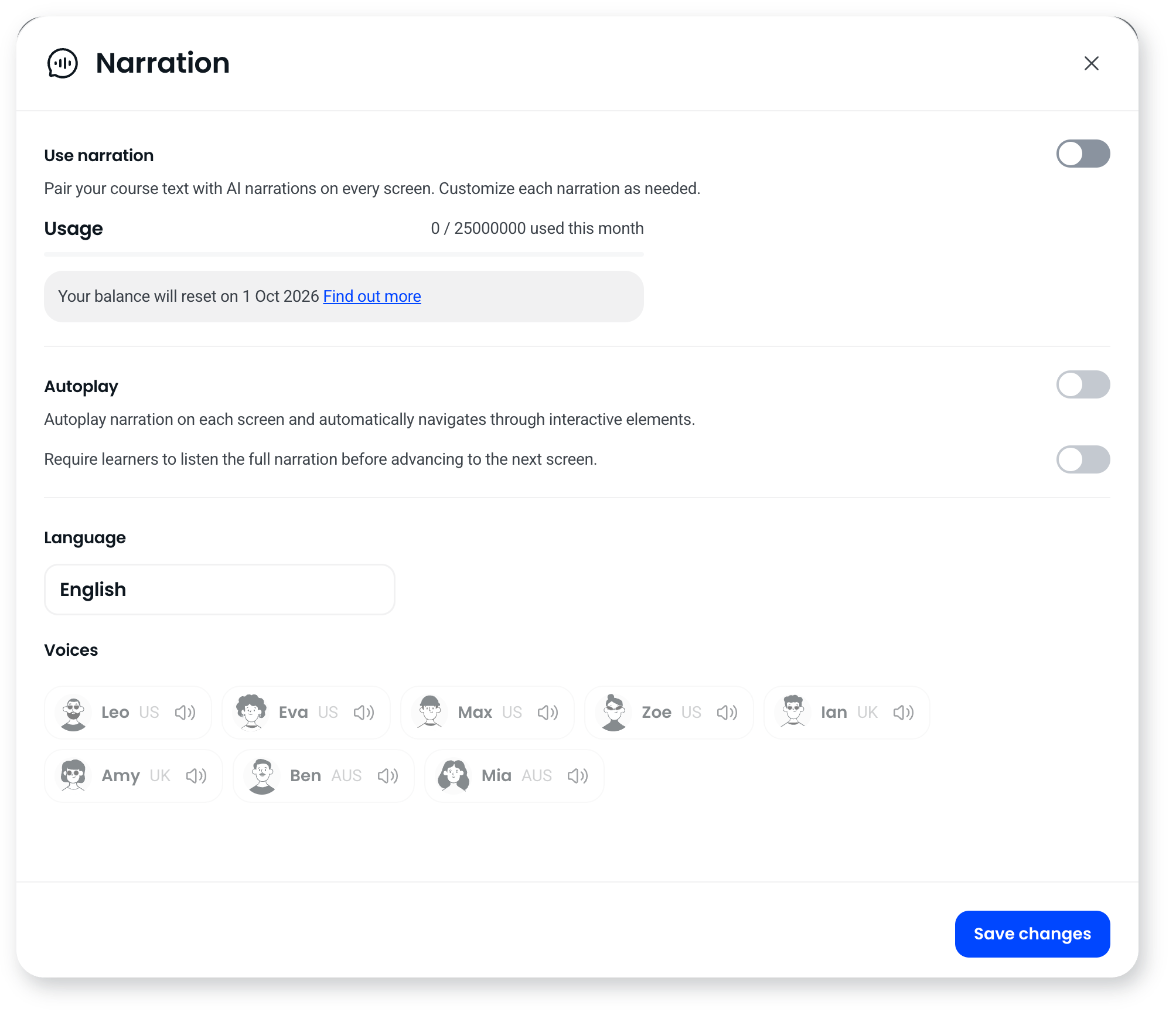
- Open the course and select the Narration icon at the top of the screen.
- Toggle on Use Narration.
- Choose your voice, and adjust the autoplay and progress settings. The narration language is set automatically from the language your course is written in, so there's nothing to select there.
- Select Save changes. If you don't save, narration won't stay on and you won't be able to generate audio.
Edit a screen's narration script
By default, narration reads the on-screen text. You can give any screen its own script in both the new builder and the Classic builder. Narration needs to be turned on for the course first.
In the new builder
- Open the screen you want to edit.
- Select Narration in the toolbar at the bottom of the screen.
- In the Narration panel, toggle off Sync narration with screen.
- Edit the text under Script. The number below the script shows its length in characters.
- Repeat for any other screens.
In the Classic builder
- Open the screen you want to edit.
- Select the Narration settings icon on the right-hand side of the screen.
- Toggle off Sync narration with screen.
- Edit the script, and repeat for any other screens.
Reviewing scripts before generating avoids using narration characters on audio you'll redo.
Generate the narration
Narration is generated when you publish:
- Select Publish, then toggle on Generate narrations.
- The dialog shows how many narrations will be generated and your narration character balance.
- Select Generate narrations and publish.
Generate narration only once your course is finalised, to make the best use of your narration characters.
Choose and preview a voice
Select the Narration icon at the top of the screen and choose from the available voices. The narration language matches your course automatically, so you're choosing a voice within that language. Select the speaker icon next to a voice to hear a sample. Changing the voice after generating means publishing again to regenerate the audio.
Autoplay and listening settings
- Autoplay: narration starts automatically when a learner lands on a screen (except the first screen, which most browsers block until the learner interacts).
- Require learners to listen in full: learners can't move on until the narration finishes, which keeps them on each screen for its full audio.
The learner experience
When narration is on, learners see a speech-bubble icon in the bottom-right. They can pause and resume narration, and adjust playback speed while it plays.
Narration characters
One narration character equals one character of generated narration, so a 1,200 character script uses 1,200 narration characters. Standard and premium voices draw from the same pool, and a translated course narrates each language separately, so it uses roughly twice the narration characters of the same course in one language.
On paid plans, the allowance is a yearly pool that resets on your subscription start date, and it's soft capped. Going past it doesn't block generation. Everything else keeps working: courses stay live, learners keep taking them, and you can keep building, editing and publishing. On Sandbox, the allowance is one-time and narration stops at the limit.
That's why you generate audio at publish time rather than on every edit. The publish dialog shows how many narrations will be generated and your current narration character balance before you commit, and your current usage is on the Usage limits page in Settings.
Working with the AI agent
If you're building with the AI agent, you can ask it which narration voices are available and how much of your narration allowance is left, so you can check before committing to a generation.
Frequently asked questions
Can I use narration in the Classic builder?
Yes. You can narrate Classic courses and edit each screen's script without moving the course to the new builder.
Can I change the narration language?
No. The language is detected automatically from the language your course is written in. You choose a voice within that language rather than setting the language yourself.
Do edits use narration characters?
Narration characters are only used when you generate or regenerate audio by publishing. Editing scripts or changing settings like autoplay won't use narration characters until you publish.
Can I edit a narration script after generating?
Yes. Edit the script any time, then publish again to regenerate that screen's narration, which uses additional narration characters.
What happens if I run out of narration characters mid-course?
On paid plans, nothing stops mid-course. The allowance is soft capped, so going past it doesn't switch narration off or block generation. On Sandbox, the allowance is one-time, so narration stops generating once it's used up.