Manage & edit courses
Managing courses from the dashboard, editing them in the builder, telling which builder a course was made in, and moving a Classic course to the new builder.
Manage all your courses from the Courses dashboard, where you can share, preview, duplicate and delete them, and edit their content by opening one in the builder. Changes save automatically as you work.
Which builder is this course in?
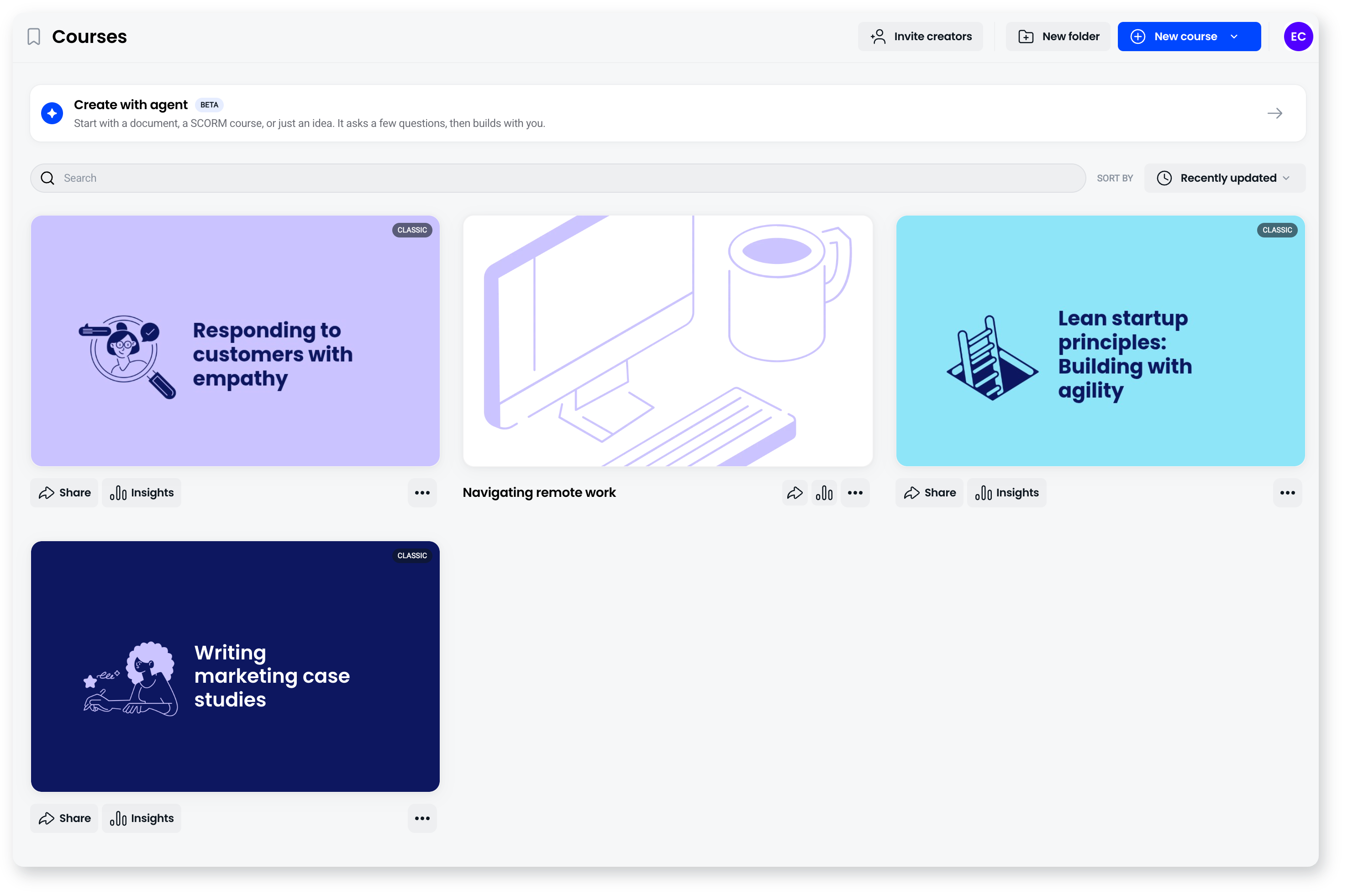
Coassemble has two builders running side by side, and a course opens in whichever one it was created in, unless it has been moved. Courses built in the Classic builder carry a Classic badge on their card in the dashboard, so you can tell at a glance which is which before you open one. A Classic course you are trying in the new builder shows Trying in new builder instead.
The two work differently once you're inside:
- The new builder puts content in blocks you arrange on a six column grid. Any block can go on any screen, screens start from a layout, and screens group into sections.
- The Classic builder uses fixed screen types. You pick the screen type and your content fits its shape.
Manage a course from the dashboard
On the Courses page, each course appears as a card. The buttons below each card offer:
- Share opens the share options.
- Insights shows analytics and learner progress.
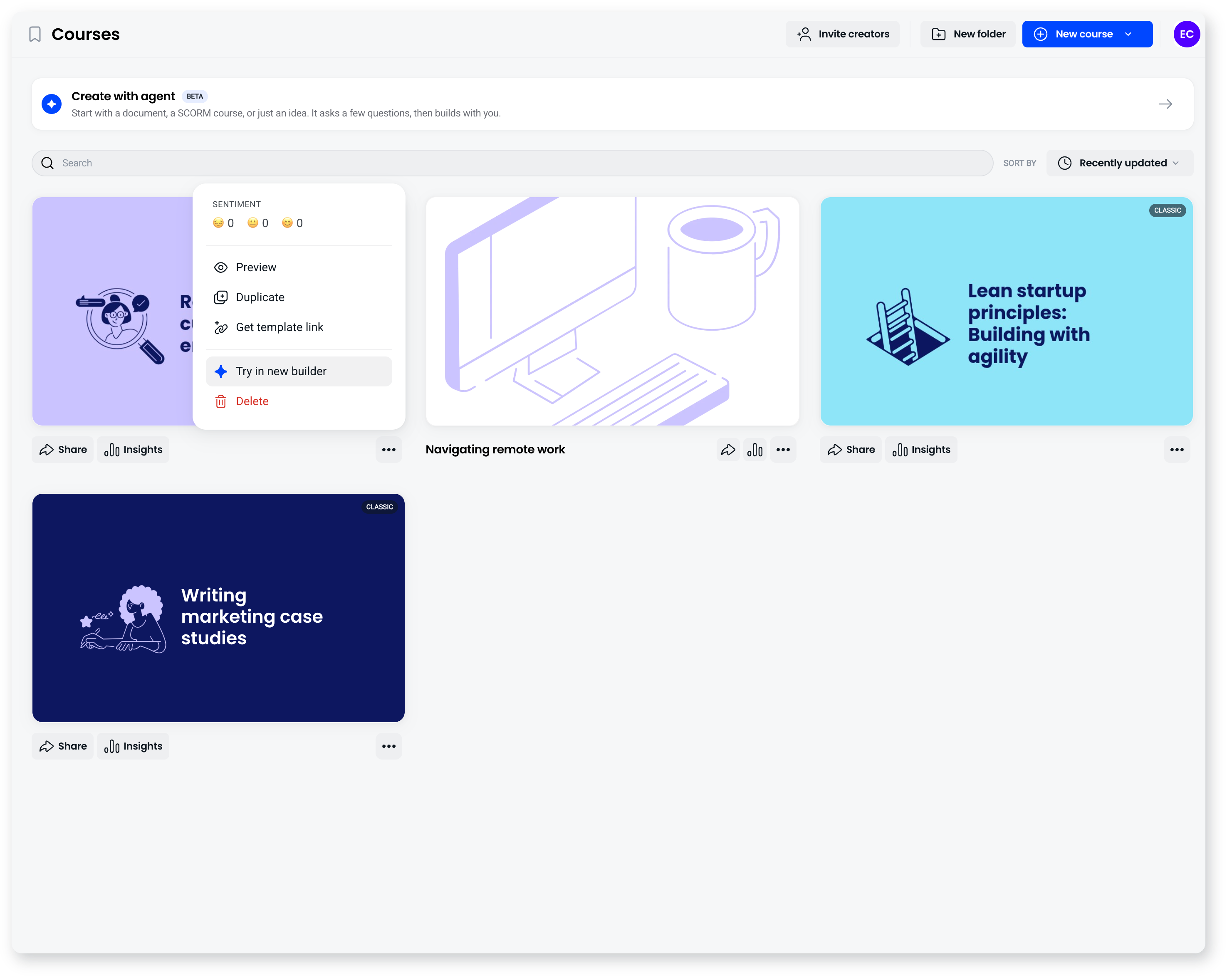
- The three-dot menu holds more actions including Preview, Duplicate, Get template link and Delete. On a new builder course it also holds Edit course card. On a Classic course it holds Try in new builder instead. You can also view course sentiment here, which is the feedback you may have chosen to collect from people at the end of the course.
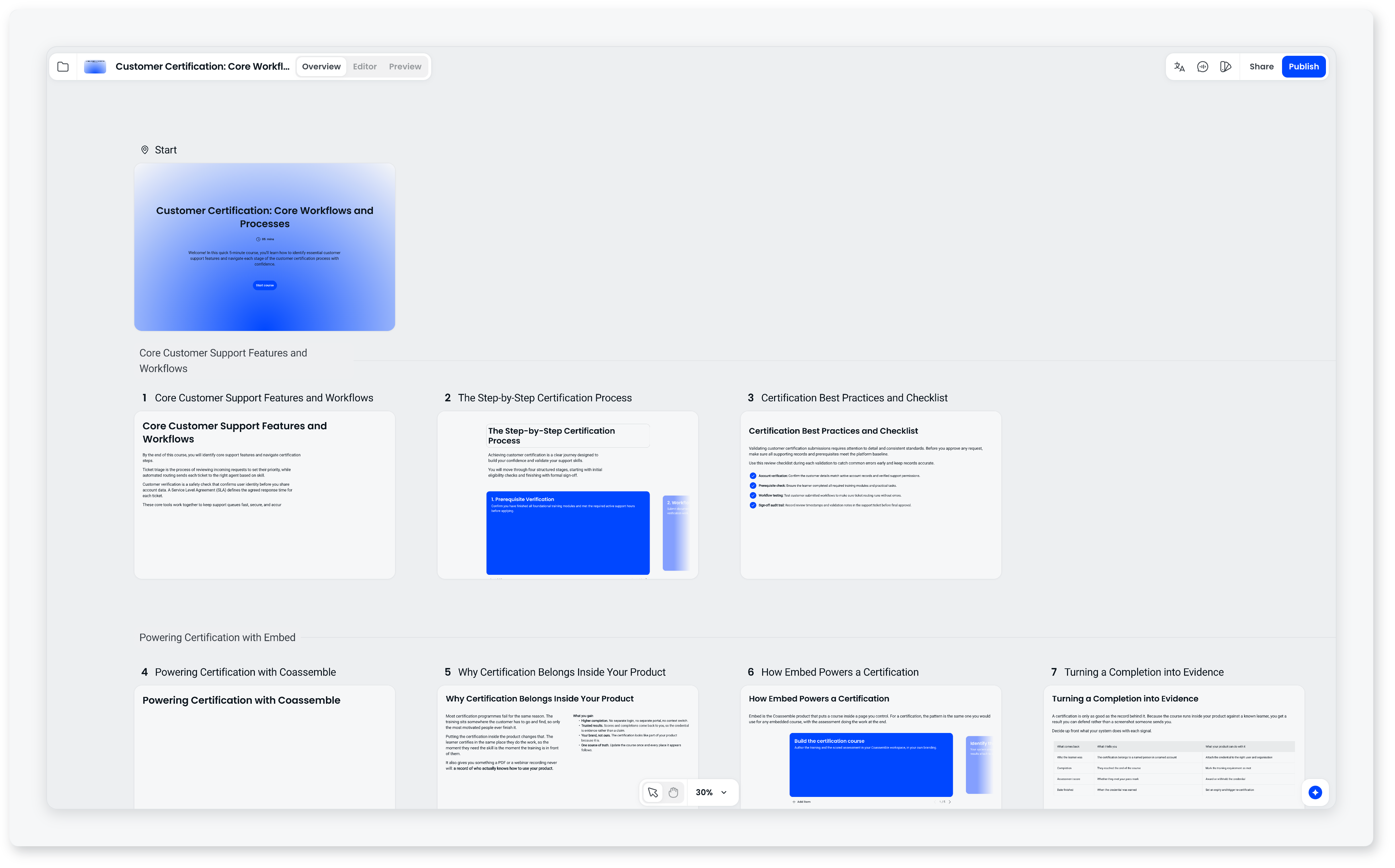
Click anywhere on the card to open the course in the builder. Once open, you can toggle between three primary workspace views at the top of the interface:
- Overview: Displays the sequential architecture of all slides chronologically from the Start page to the Finish screen.
- Editor: Allows real-time editing of slide elements and interactive blocks.
- Preview: Displays the fully compiled course exactly as it will appear to learners.
Edit a course in the new builder
- Open the course from the Courses dashboard.
- Use the screen list of slide thumbnails on the left to jump directly to a slide, or use the left (<) and right (>) arrows next to the slide count indicator at the bottom of the workspace to move between screens and sections.
- Click any block to edit it. A toolbar appears with the options for that block type.
- Drag a block to move it, or set its width on the grid. Blocks can sit side by side or stack down the screen.
- Add screens from the Screens picker, reorder them, or remove ones you don't need. Swap a screen's whole layout with the Layout button in the screen toolbar.
- Switch to Mobile at the top of the builder to reorder blocks for a narrow screen or hide one from mobile.
Edit a course in the Classic builder
- Open the course from the Courses dashboard.
- Use the screen list of slide thumbnails on the left to jump directly to a slide, or use the left (<) and right (>) arrows next to the slide count indicator at the bottom of the workspace to move between screens.
- Click any text box to edit it. A formatting toolbar appears for headings, alignment and styles, where you can apply enhancements like custom text colors.
- Click interactive elements, like checklists or accordions, to edit their labels and settings.
- Select slides containing images and access layout tools to replace existing assets, or use integrated search tools to find new high-quality images. You can also adjust slide layout options to enable or disable fields like title and description blocks.
- Add new screens by clicking the addition button at the bottom of the sidebar, reorder them, or remove ones you don't need.
Changes save automatically in both builders, and you can undo and redo while editing. Use the back arrow to return to the dashboard.
Move a Classic course to the new builder
- One course: select Try in new builder at the top of the Classic builder, or from the three-dot menu under the course card. The course opens in the new builder as a trial. Select Migrate to new builder when you are happy, or Back to classic to return the course exactly as you left it. Learners keep seeing the published version while you try.
- Several at once: tick the checkbox on each Classic course, then select Migrate to new builder in the toolbar at the bottom. These migrate straight away, without a trial.
Migrating is final.
Preview before publishing
Click Preview in the top right of the builder to see the course exactly as a learner would, and check that navigation, quizzes and other interactive elements behave as expected. Click Start course on the cover screen to launch the first slide. You can navigate between slides using the arrows in the bottom-right corner, or use the navigation menu icon (three horizontal bars) in the top-left corner to jump to a specific screen. When you are finished, click the preview exit button in the top-right corner to return to the editor. Saving isn't publishing: when you're ready to make changes live, publish from the builder.
Duplicate a course
Duplicating makes an exact copy, handy for version control, audience variations, backups before big changes, or moving a copy between workspaces.
- Find the course on your dashboard and open the three-dot menu.
- Select Duplicate.
- If your account has multiple workspaces, choose the destination workspace, or leave it to keep the copy where it is.
- Select Duplicate course.
The copy appears with "(Copy)" added to its title, ready to edit. Adding a year or version indicator helps if the course is an updated version.
Rename a course
Renaming your projects helps ensure that your development draft history remains clean and identifiable. To update a course title directly within the builder interface:
- Locate the current title field in the top-left corner of the editor window.
- Click directly inside the text input box to highlight the title.
- Delete the placeholder text and type your new descriptive title.
- Click anywhere outside the text box or let the editor auto-save to apply the name change.
Delete a course
- One course: open the three-dot menu and select Delete.
- Several at once: tick the checkbox on each card, then select Delete in the toolbar at the bottom.
You'll see a warning first. Deleting a course can't be undone.
Frequently asked questions
Do I need to save my changes?
No. The builder saves automatically as you work, but saving doesn't publish. Publish when you want the changes live.
Can I duplicate a course into a different workspace?
Yes, if your account has more than one workspace. You choose the destination when you duplicate.
Can I recover a deleted course?
No. Deleting a course is permanent, so duplicate it first if you want a backup before major changes.
Why does one of my courses look different to edit?
Because it was built in the other builder, or moved to the new builder. A course opens in whichever builder it is in, and the Classic badge on the card tells you which one that is before you open it.
Why can't I select a course to migrate?
Courses you are trying in the new builder can't be selected. Open the course and choose to migrate it or go back to Classic first. The Migrate to new builder option also only appears when every course you have selected is a Classic course.