How accessible are courses built in the new builder?
What the new builder handles for you, what you control, and what the agent's Review tab checks, so courses work for learners using screen readers and keyboards.
Accessibility is built into how courses are structured rather than left as something to remember. Screens are built from headings, tables use real header rows, list content uses real list structures, and you control the order blocks are read in by screen readers, narration and keyboard navigation. The agent's Review tab then checks your course for the things only a person can fix, such as missing alt text and link text that does not say where it goes. Review is what Coassemble calls Course Coach, though that name doesn't appear in the builder.
Does it meet WCAG?
The new builder's learner experience is built to WCAG 2.2 Level AA, the same standard Coassemble's Classic learner experience is independently verified against. Everything learned from that audit has been applied here, so courses built in the new builder are built to be conformant.
The independent verification itself, the Statement of Conformance awarded by Modality Co, covers the Classic learner experience. The new builder's learner view has not been through its own verification yet, so if you are answering a procurement questionnaire that asks for third-party verification, that is the distinction to be aware of.
This page describes what is handled structurally, what is checked for you, and what still needs a person, so you can see exactly where courses stand rather than relying on a single claim.
What does the builder handle for me?
These are not settings you can forget to turn on:
- Real heading structure. A heading block is the screen title, and it gives assistive technology the document structure it relies on to navigate. Courses the agent builds start each screen with one, and Review flags any screen carrying real body text without one.
- Tables have real header rows. A table block uses proper table headers, so a screen reader announces each data cell in the context of its column rather than reading a grid of loose values.
- Lists are real lists. Checklists and accordions carry their structure in the markup, so they are announced as lists rather than as a paragraph that happens to have bullet characters typed into it. Process steps announce which step the learner is on.
- Video supports captions. Upload an SRT or WebVTT caption file to a video you have uploaded and set the language it is in. Video embedded from YouTube or Vimeo carries the captions set on those platforms. Captions are not generated for you, so the file has to come from you.
Can I control the order things are read in?
Yes, and this is the control that matters most on a visually arranged screen. You can set the order blocks are read in by screen readers, narration and keyboard navigation, independently of where they sit visually.
That matters because the arrangement that reads best is not always the arrangement that looks best. An image to the right of a paragraph might need to be announced before it, or skipped over. Rather than compromising the visual design, you set the reading order to what makes sense when heard.
How does alt text work?
AI writes alt text for you, in three places:
- When a course is built, images from your source document keep any alt text or caption that came with them, and images the agent generates get a description written for them.
- On any image block, there is an Alt text field in the image menu, where you can write a description or tick Decorative image for an image that is purely decorative. If the image is from your library, the description is saved with it and used everywhere that image appears.
- When you apply the Review fix for a missing description, the AI writes one based on the course content around the image, so check it against the picture.
You can edit any of it. Generated alt text is a starting point, and you know your content better than the model does.
One deliberate limit. Alt text is never derived from a filename or a screen title. Where no description can be produced, the image is left with empty alt text rather than filled with something meaningless, and Review flags it so a person can write a real one.
That is a considered choice rather than a gap. A screen reader treats an image with empty alt as decorative and moves past it, but reads a filled alt aloud. An image described as "Artboard 1 copy 2", or with the screen title repeated on all three images on a screen, is noisier and less useful to a learner than silence. Leaving it empty also keeps the flag firing, so the gap stays visible instead of looking finished.
How do I add captions to a video?
Captions come from you, as a file you upload:
- Select the video on the screen so the video toolbar appears.
- Open the Video menu and choose Captions.
- Set the language your captions are in.
- Upload your SRT or WebVTT file.
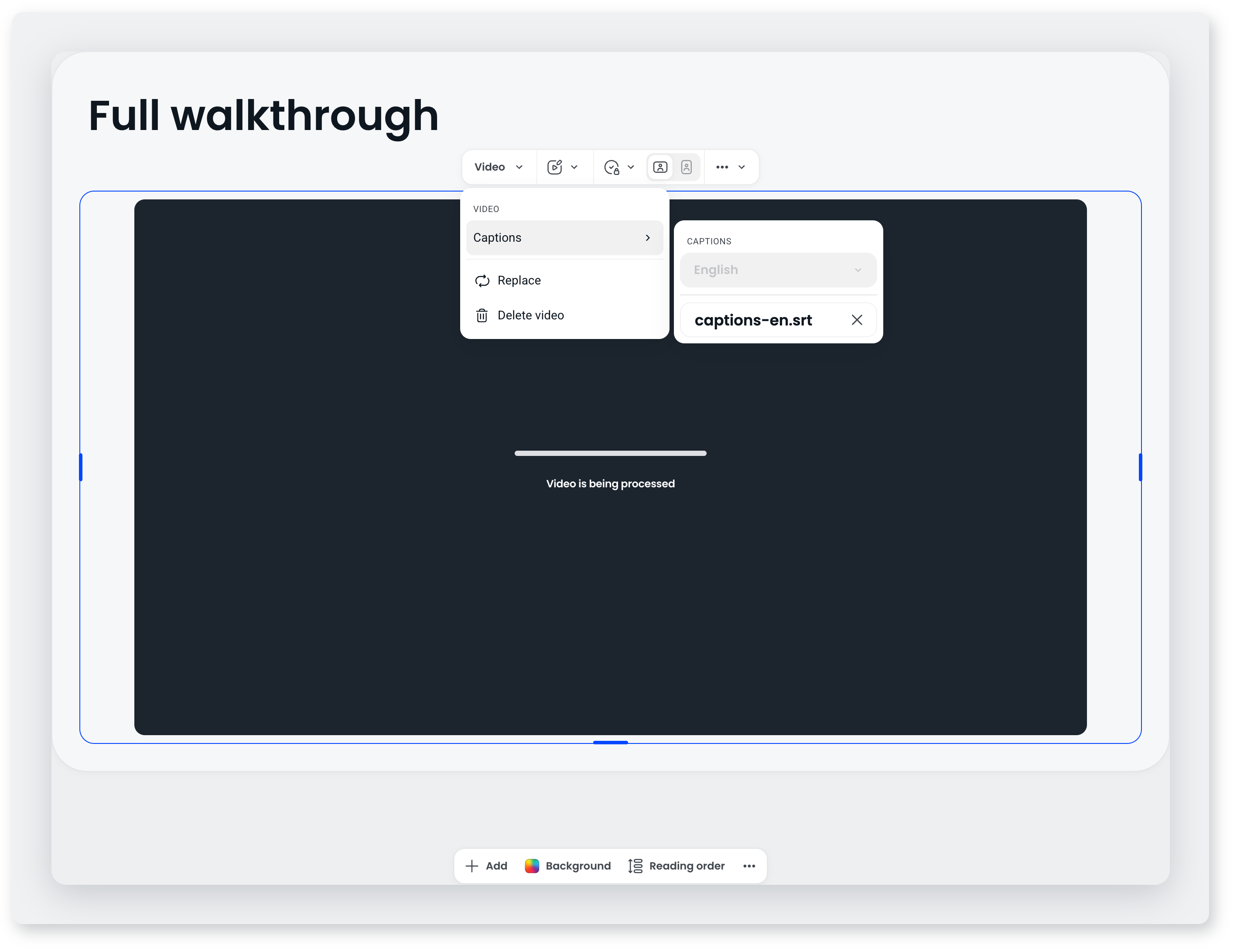
Both SRT (.srt) and WebVTT (.vtt) are standard exports from captioning tools, video editors and transcription services. A plain transcript will not work on its own, because it has no timings to synchronise against the video. For video embedded from YouTube or Vimeo, caption it on that platform and the captions carry through.
AI narration is separate. Where you generate narration from screen content, it produces its own closed captions that you can review and edit before publishing.
What does the Review tab check?
The accessibility checks run automatically and are objective, so the same course always produces the same result:
- Images, slideshow slides, process card images and flashcard images with no alt text, unless they are marked as decorative.
- Link text that does not describe its destination, such as "click here" or a bare URL pasted in as a link.
- A screen carrying real body text with no heading on it.
It also flags reading level well above general audience level, which is not strictly an accessibility rule but affects who can actually use your course.
What is not checked for me?
Two things worth knowing if you are doing an accessibility audit:
- Colour contrast is only partly checked for you. Text on buttons and accent colours is picked automatically to read against them, but a text colour you set yourself is not checked. If you set your own brand colours, check the contrast of your text yourself. The same applies to a font you set on an individual heading or paragraph outside the theme.
- Whether your video captions are present and accurate is not checked. You can add a caption file to any video, but nobody is verifying you did, or that what is in the file matches what is said.
What am I responsible for?
The structural work is handled. What is left is the part that needs a person who knows the content:
- Write alt text for images that carry meaning, and tick Decorative image for images that are purely decorative.
- Write link text that describes where it goes, rather than "click here".
- Give screens descriptive headings that name the topic, not "Section 1".
- Do not rely on colour alone to carry meaning. If something matters, say it in the text too.
- Add captions to video. On a video you have uploaded, open the Video menu, choose Captions, set the language and upload an SRT or WebVTT file. On YouTube or Vimeo video, caption it on that platform.
- Check the reading order on any screen where you have arranged blocks side by side.
Frequently asked questions
Can learners use a course without a mouse?
Yes. Learners can move through a course with the keyboard, and the reading order you set is the order keyboard navigation follows.
Does the agent write accessible courses?
Largely, yes. It handles the structural parts, headings, real tables and real lists, and it writes alt text for images as it builds. Where it could not produce a meaningful description, the image arrives with empty alt text and Review lists it, so check that tab before you publish rather than assuming every image is described.
Does Coassemble generate video captions for me?
No. Captions for video come from you, as an SRT or WebVTT file you upload. AI narration is the exception: it produces its own closed captions from the narration script, and you can review them before publishing.
Does it work on a phone?
Courses adapt to smaller screens. You can reorder how blocks stack and hide blocks that do not work on a narrow screen, which is worth doing rather than leaving a wide table to squeeze itself onto a phone.