How do I connect Coassemble to Claude?
How to connect Claude to your Coassemble workspace, what to ask it once connected, and how to manage or remove the connection.
Connect Claude to Coassemble and you can build, edit and publish courses by chatting with it. Claude can create a course from a brief or a document, rewrite screens, add images and narration, translate courses, organise folders and collections, and read how learners are doing, all in your own Coassemble workspace. You sign in to Coassemble once to authorise it. There's no API key to paste.
What do I need?
- A Coassemble account with the owner, admin or creator role in the workspace you want Claude to work in.
- Claude on the web, desktop or mobile.
How do I connect Claude?
- In Claude, open Settings, then Connectors, and select Browse connectors.
- Search for Coassemble and select Connect.
- Sign in to Coassemble when prompted.
- Check the account shown, then select Approve.
Coassemble now appears in your Claude connectors, and Claude appears in Coassemble under Settings > MCP.
On a Claude Team or Enterprise plan, an owner may need to turn on the Coassemble connector for your organisation first.
Can I add Coassemble to Claude manually?
Yes. Use this if your Claude organisation doesn't allow connectors from the directory.
- In Claude, open Settings, then Connectors, and select Add custom connector.
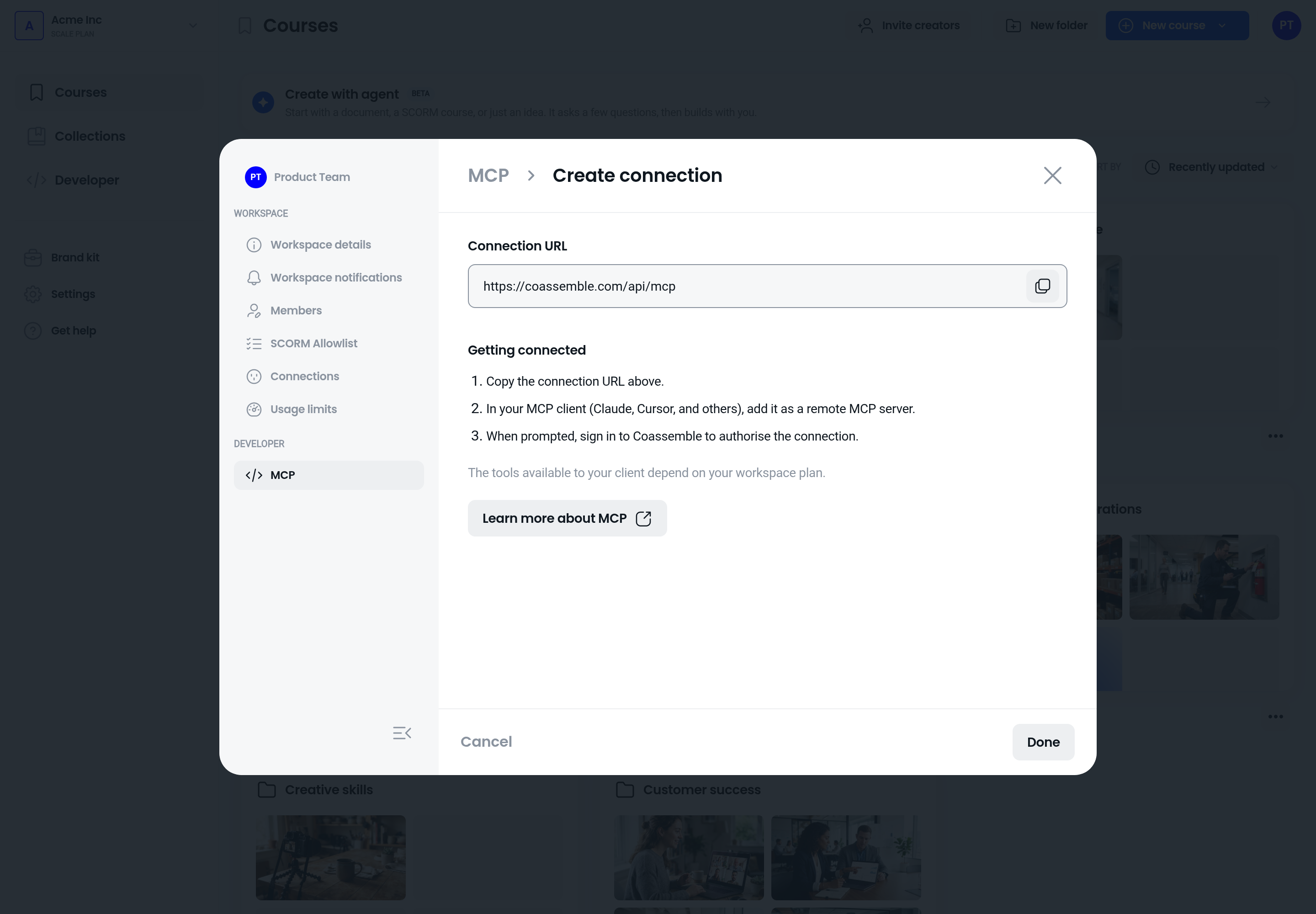
- Name it Coassemble and paste this address:
https://coassemble.com/api/mcp - Select Add, then Connect, and sign in to Coassemble as above.
You can also copy the address in Coassemble from Settings > MCP > Create connection.
What can I ask Claude to do?
- "Create a 10-minute course on fire safety for new warehouse staff, with a short quiz at the end."
- "Turn the Onboarding handbook document in my Coassemble library into a course."
- "Rewrite screen 3 of my Customer Service course in a friendlier tone."
- "Add images to every screen that doesn't have one."
- "Translate my Code of Conduct course into Spanish and French."
- "Publish the course and give me the share link."
- "How are learners doing on my Privacy Basics course?"
- "Switch to my Marketing workspace and list its courses."
Before it creates a course, Claude asks who the course is for, how deep to go, the learning outcomes, the tone, whether to include a quiz, and the language. Answering these gets you a better first draft.
What should I know before I start?
- It works as you. Claude can only see and change what your Coassemble account can.
- Documents. Claude can't upload files to Coassemble. Upload the document to your Coassemble media library first, or give Claude a public link to it.
- Allowances. Generating images and narration uses your workspace allowance, just as it does in the app. If your workspace has a limited allowance, Claude tells you what it will cost and waits for you to say yes.
- Deleting. Claude can delete courses, screens and other content when you ask it to, so check what it's about to remove before you approve the action.
- Bigger builds take a few minutes. They run in the background, and Claude checks on them and tells you when the course is ready.
How do I disconnect Claude?
- In Coassemble: go to Settings > MCP and select Disconnect next to Claude. Access stops straight away.
- In Claude: go to Settings > Connectors, select Coassemble, and disconnect it.
Frequently asked questions
Claude says it can't find my course
The course may be in another workspace. Ask Claude to list your workspaces and switch to the right one.
The sign-in window closed or failed
Disconnect Coassemble in Claude's connector settings and connect again.
There's a connection in Settings > MCP I don't recognise
Disconnect it. The name and icon come from the application that connected, so treat them as a label rather than proof of identity.
Does Claude build the course itself?
No. Claude decides what to ask for and calls the right tools. The course generation itself runs on Coassemble's own AI, so a course built through Claude is the same as one you build in the app.