Create from scratch
How to build a course yourself with no AI generating content, in either the new builder or the Classic builder.
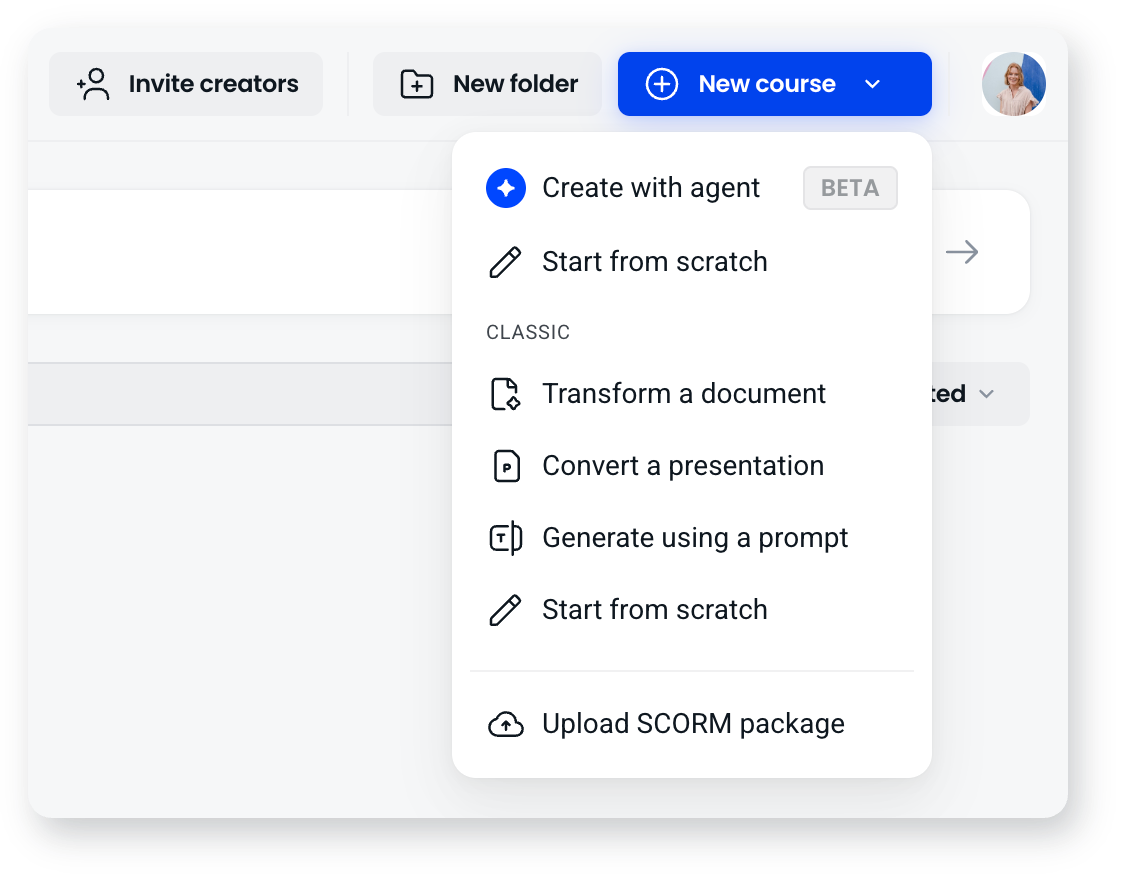
Two options in the New course menu let you build a course entirely yourself. Both are called Start from scratch, and which one you pick decides the builder you work in.
- Start from scratch at the top of the menu opens the new builder. Screens are made of content blocks you arrange on a six column grid rather than fixed screen types, so you control the layout directly.
- Start from scratch inside the Classic group opens the Classic builder, where you pick a screen type for each screen.
Either way you bypass the AI assistant that asks you questions about your course in the other creation methods, and you land in the builder with a blank canvas.
Why start from scratch?
Choose it when you have a clear idea of how the course should be built, including what elements you need and what has to be included. Starting from scratch means AI isn't generating or organising course content for you.
If you have a policy document or existing training materials that need to appear word for word, starting from scratch gives you complete control of the text, and nothing is summarised or omitted.
How do I start from scratch in the new builder?
Step 1: Select your build method
At the top of your workspace dashboard, above the list of courses, select New course, then Start from scratch at the top of the menu.
Step 2: Name your course
You land in the builder on the Start screen. Click the Course title text to name the course.
Step 3: Set your theme
Set a theme before you build, so colours and fonts are right from the first screen rather than being changed later.
Step 4: Add a screen from a layout
Click to add a screen and the Screens picker opens with layouts grouped six ways. A layout gives you a pre-arranged set of blocks, so you're not starting from an empty screen:
- Content: Title + text, Title + text split, Title + 2 columns, 2 columns + image, Banner + 3 columns, Title + 3 columns, Large image left, Text + image right, Paragraph + 2 images, 3 columns + images, 2 columns + images, Full image, Full video, Text + video, Full slideshow, Text + slideshow.
- Interactive: Checklist, Accordion, Numbered list, Acronym, Flashcards, Process, Hotspot, Interactive video.
- Chart: Column chart, Line chart, Text + donut, Two charts.
- Knowledge check: a single practice question, where you pick the question type to start from, or Video with questions, which pins questions to a video so they pause it at set moments.
- Embed: Large embed left, Text + Embed right, Full document.
- Section intro: an emphasised cover screen that opens a section. Title, Title + image left, Title + image right, Image banner + title, Title + Image banner, Image behind.
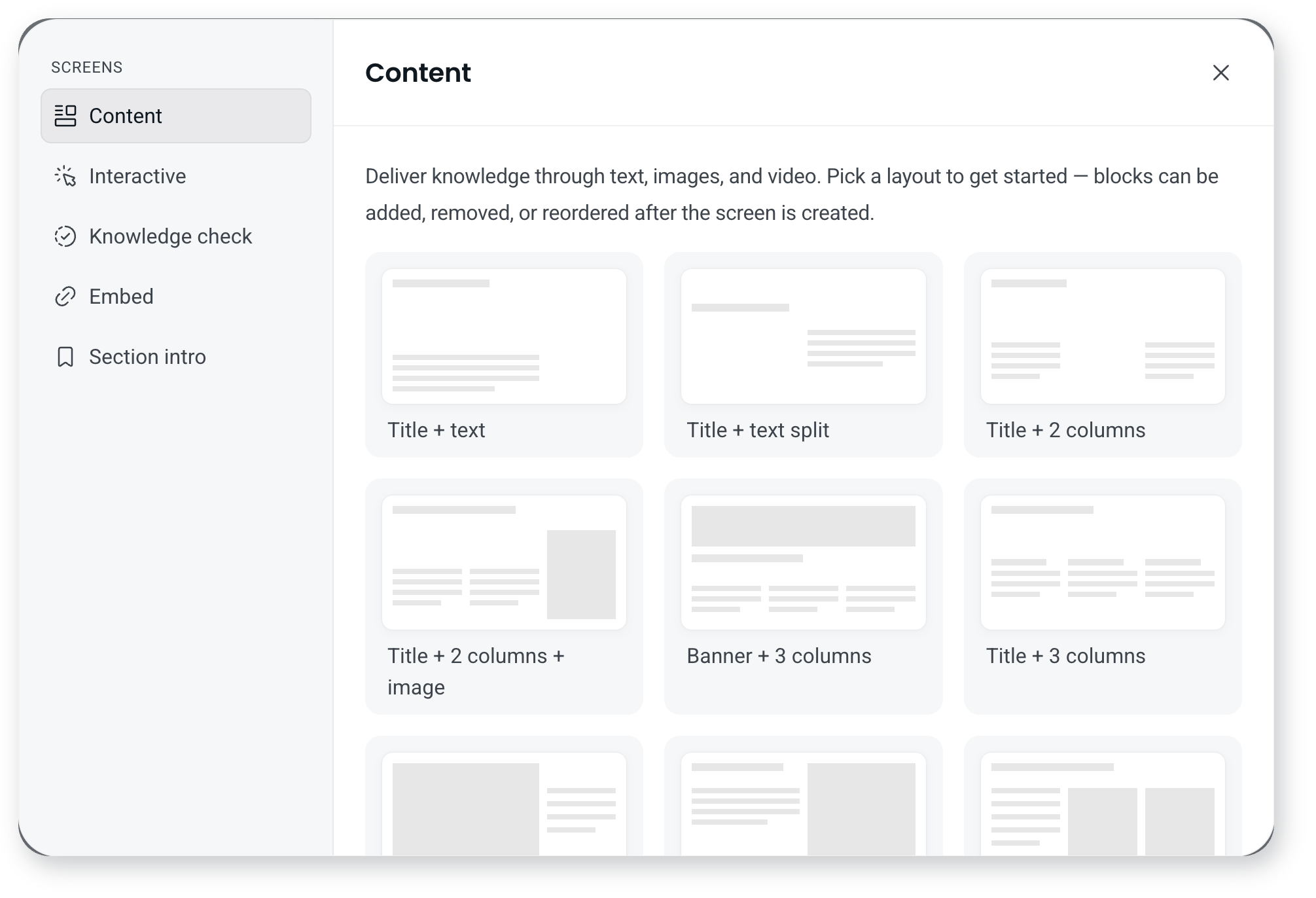
A layout is a starting point, not a fixed shape. Add, remove and reorder blocks afterwards.
Step 5: Fill and arrange the blocks
Replace the placeholder content with yours. Each block can be set to a width on the six column grid (a minimum of two columns) and dragged where you want it, so blocks sit side by side or stack down the screen.
Step 6: Structure a long course with sections
Sections group screens into parts of a course. Use a Section intro layout to open each one. A scored quiz is its own section, so build it separately from your content sections rather than dropping questions into them.
Step 7: Check it on mobile
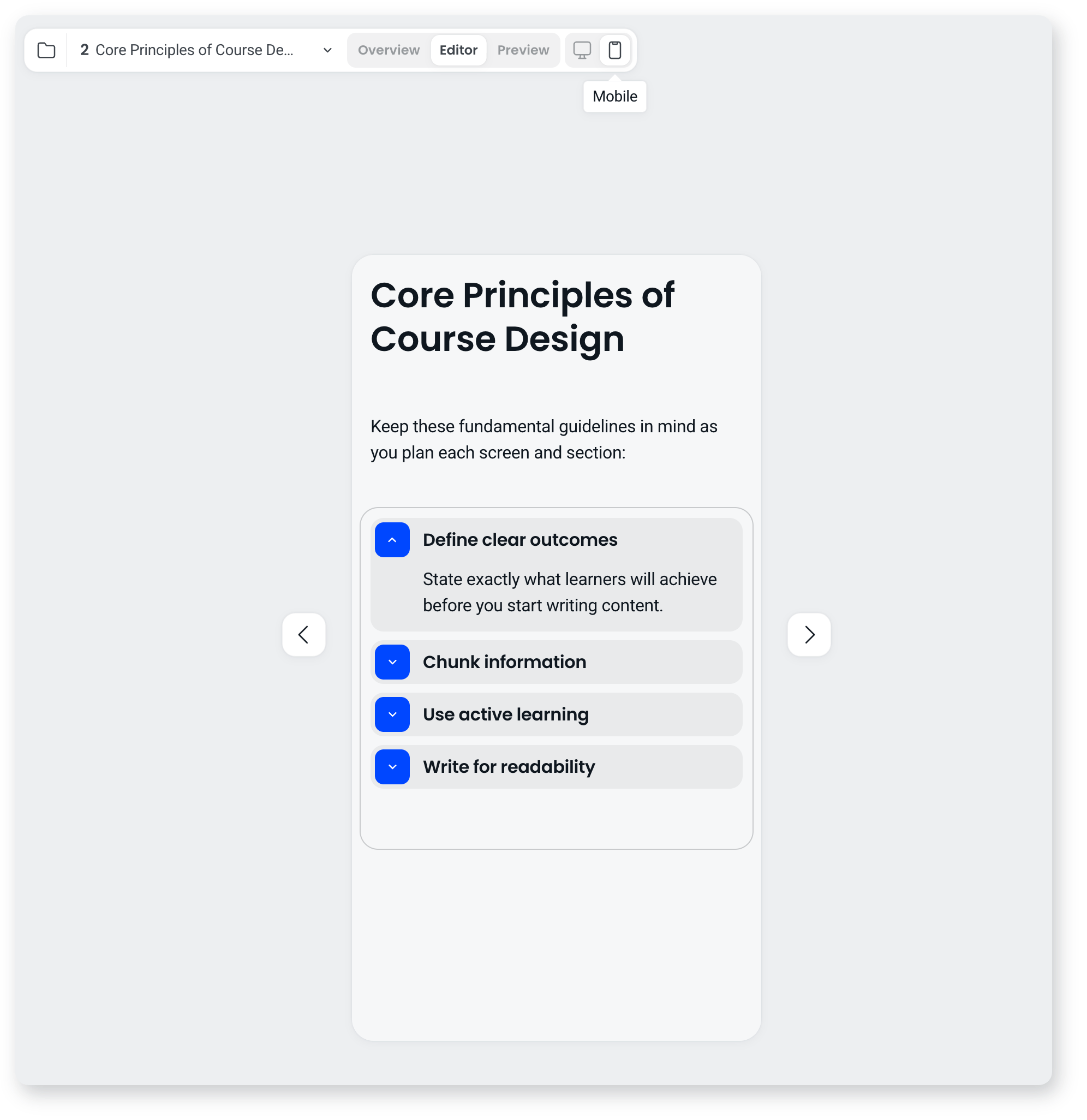
Switch from Desktop to Mobile at the top of the builder. You can reorder blocks so they stack sensibly on a narrow screen, and hide a block from mobile entirely if something like a wide table doesn't belong on a phone. You can't edit block content in this view, so the words stay the same everywhere.
How do I start from scratch in the Classic builder?
Step 1: Select your build method
At the top of your workspace dashboard, select New course, then Start from scratch from inside the Classic group.
Step 2: Name your course
You land on the Start screen. Click the Course title text to name the course.
Step 3: Change your course theme
Before adding screens, select a theme that suits your brand. Click the Course theme button on the toolbar at the top of your screen.
Step 4: Add your first screen
Click the Add screen button on the left hand menu, then choose the screen type you want.
If you have existing training materials, you may want to copy and paste these straight into your screens. You can also use screens to storyboard the course, leaving space for video or other missing pieces as you go.
Frequently asked questions
Which of the two Start from scratch options should I use?
Use the one at the top of the New course menu, which opens the new builder, unless you specifically want to work with fixed screen types. The new builder gives you more control over layout, and it's where new blocks and features land.
Do I have to use AI if I start from scratch?
No. Starting from scratch bypasses the AI assistant entirely, and nothing is generated or reorganised for you. You can still ask AI for help later if you want it, for example to refine wording or generate an image, but that's your call.
Can I still use layouts if I want full control?
Yes. A layout only sets where blocks start. Every block can be moved, resized, removed or replaced afterwards, so using one doesn't limit what the screen ends up as.