Move a Classic course to the new builder
How to try a Classic course in the new builder, what carries over, how to migrate or go back, and how to move several courses at once.
You can move a course you built in Classic into the new builder. Start with a trial: the course opens in the new builder so you can check how it came across, and nothing is final until you choose to migrate. If it isn't ready, go back to Classic and your course is exactly as you left it.
Try a course in the new builder
- Start the trial from either place:
- In the Classic builder: open the course and select Try in new builder at the top of the screen, next to Undo and Redo.
- On the Courses dashboard: select the three-dot menu under the course card, then Try in new builder. This works for courses inside a folder too.
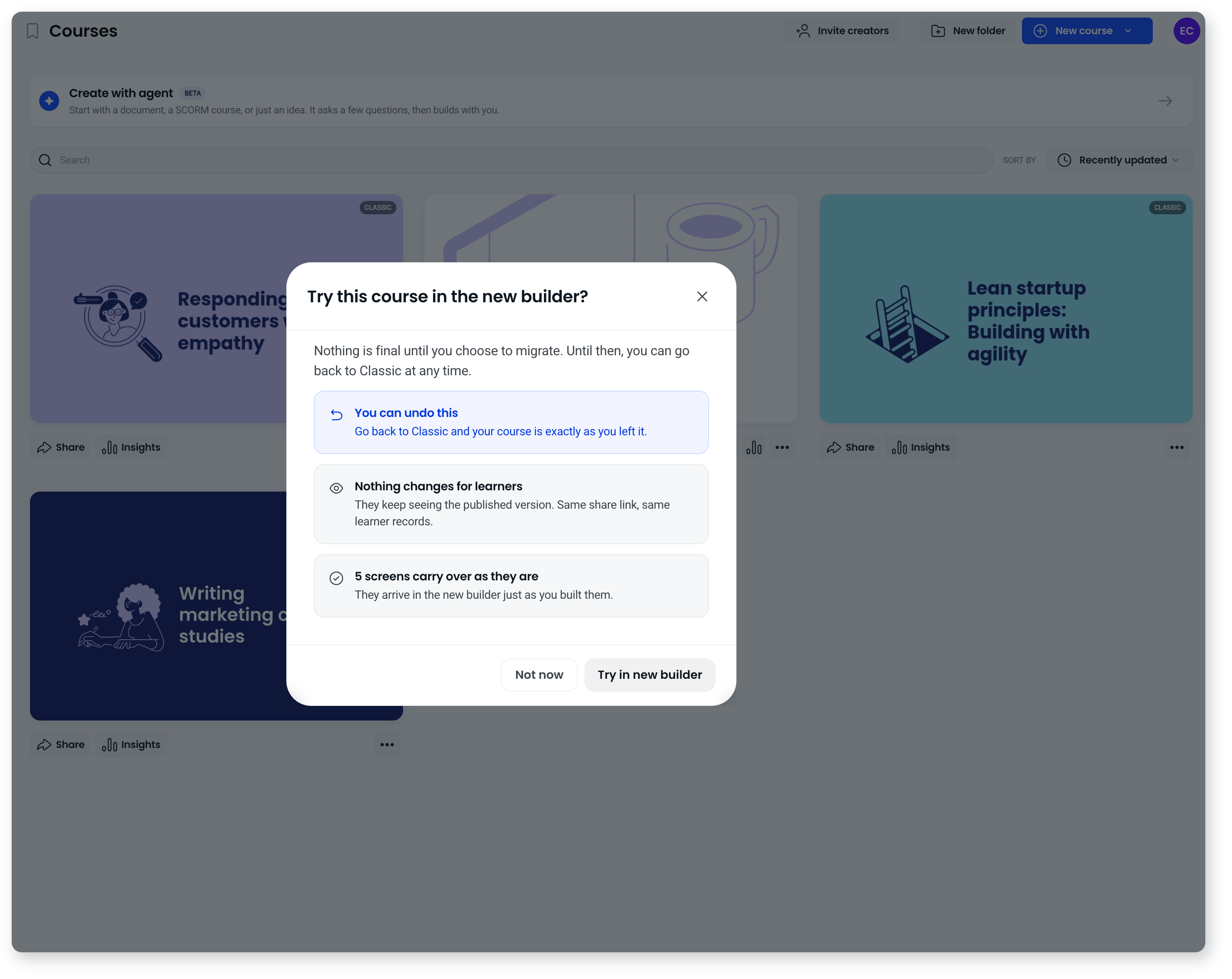
- Read the summary. It reminds you that you can go back to Classic at any time and that nothing changes for your learners, and it shows how many screens carry over as they are. If any screens lose something along the way, or can't move yet, those are listed too.
- Select Try in new builder to start the trial, or Not now to leave the course in Classic.
What can I do during a trial?
The course opens in the new builder with a dark bar across the top that says Trying the new builder. From there you can:
- Edit the course. Make changes the same way you would in any new builder course.
- See what changed. If any screens changed in the move, the bar shows how many. Select it to see each one, starting with the screen you are on, and use Go to screen to jump to the others.
- Decide. Use Back to classic or Migrate to new builder at the right of the bar.
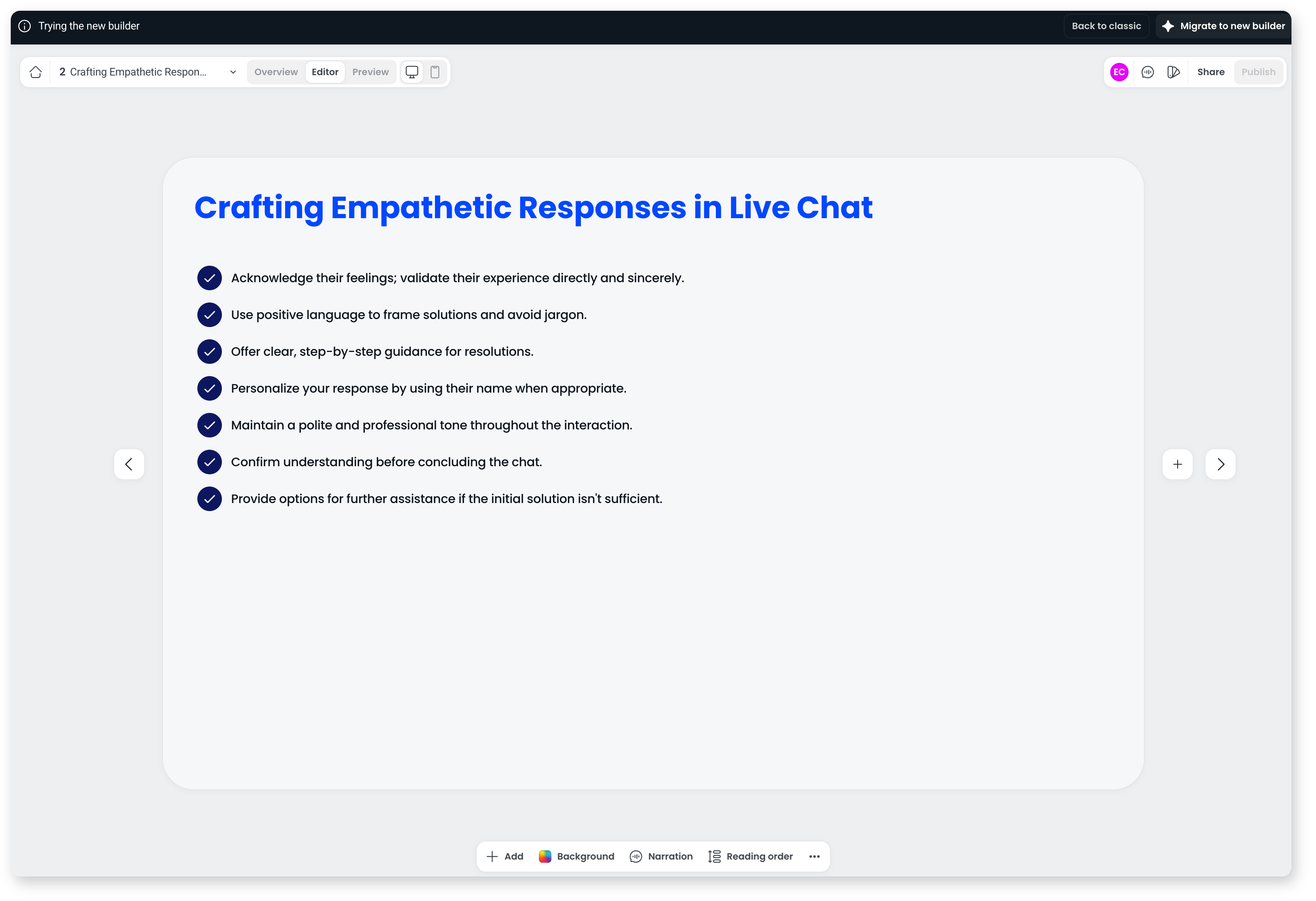
Publishing is turned off until you migrate the course.
Your learners aren't affected while you try. They keep seeing the published version, with the same share link and the same learner records. On the dashboard, the course card shows Trying in new builder, and opening it picks the trial up where you left off.
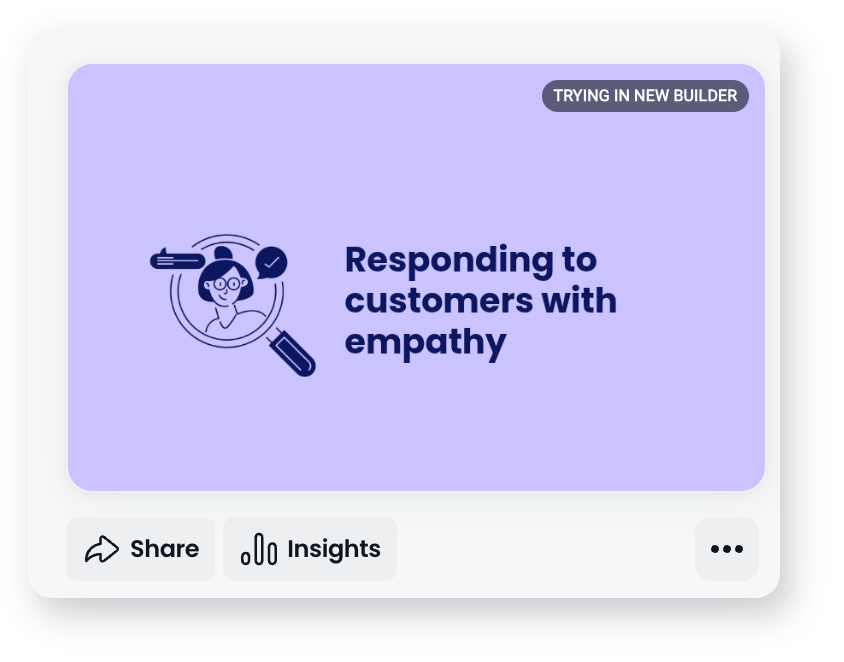 If a course is being trialled in the new builder but not officially migrated, you will see "Trying in new builder" as a label on the course card in your workspace.
Migrate the course
- Select Migrate to new builder in the bar at the top.
- Read the confirmation, then select Migrate. Select Cancel to keep trying.
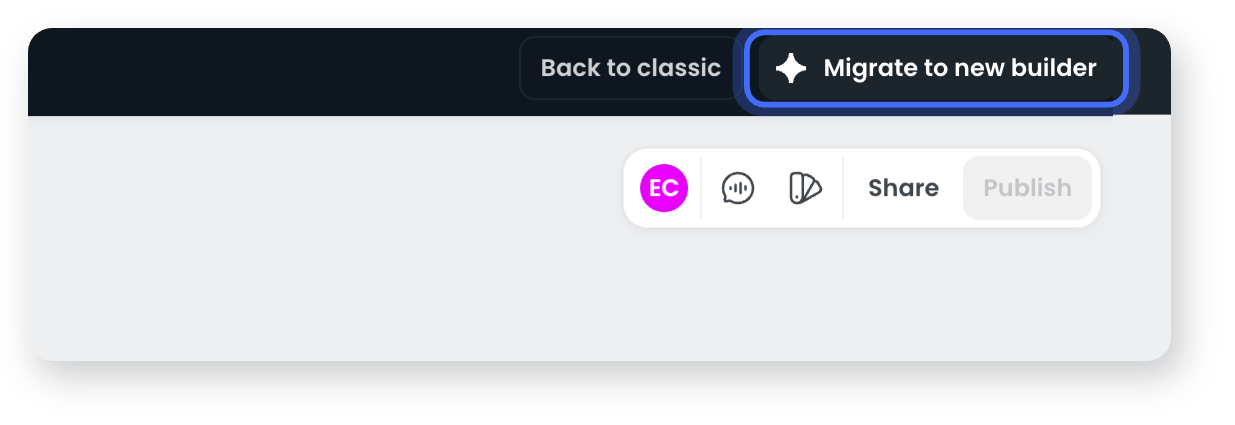
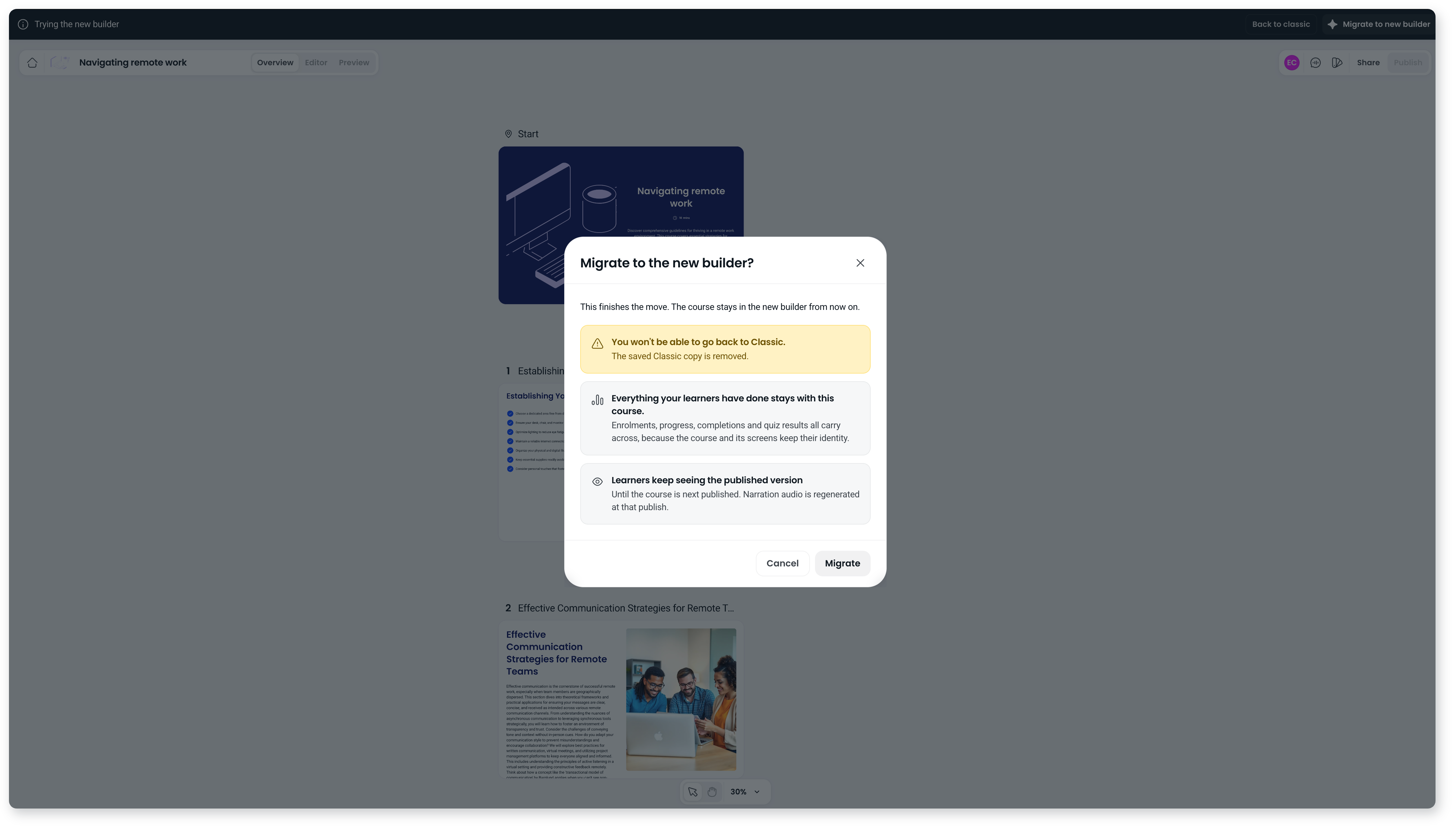
Migrating is final. The course stays in the new builder from then on, you can't go back to Classic, and the saved Classic copy is removed.
Everything your learners have done stays with the course. Enrolments, progress, completions and quiz results all carry across, because the course and its screens keep their identity.
Learners keep seeing the published version until you next publish the course. If the course has narration, the audio is regenerated when you publish.
Go back to Classic
Select Back to classic in the bar at the top.
- If you haven't edited anything, the course goes straight back.
- If you have made edits, you'll be asked to confirm first, because edits made during the trial are lost.
Either way, you land back in the Classic builder with the course exactly as you left it.
You'll then be asked what made you go back. Tick any that apply:
- Screens didn't come across accurately
- It doesn't look as good as Classic
- I'm just not ready to move yet
- Something else, with room to tell us more
Select Send feedback, or Skip if you'd rather not say. Your answer helps us improve how courses come across.
Move several courses at once
- On the Courses dashboard, or inside a folder, tick the checkbox on each Classic course you want to move.
- Select Migrate to new builder in the toolbar at the bottom.
- Confirm.
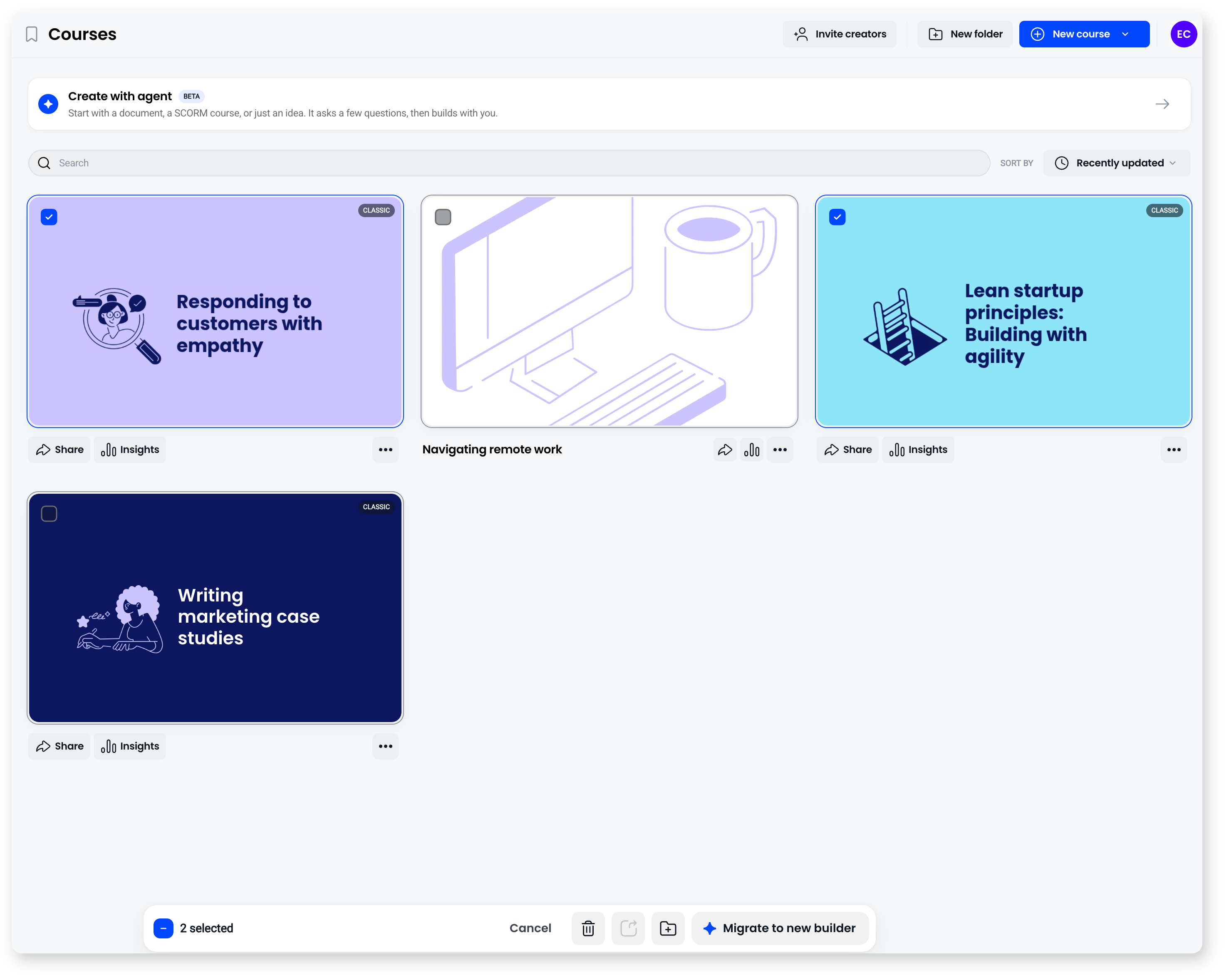
A few things to know:
- There's no trial. Selected courses migrate straight away, and that can't be undone. Try one course first to see how your content comes across.
- Classic courses only. The option only appears when every course you have selected is a Classic course. A course that's being tried can be selected, but it won't migrate until you finish its trial.
- One course skips the trial too. If you select a single course this way, it goes straight to the migrate confirmation.
A progress window lists each course, with anything that needs your attention at the top:
- Migrated cleanly. Nothing to check.
- Migrated with a note. The note names the screen and what changed. Select Open screen to go straight to it.
- Didn't migrate. The course stays in Classic, untouched. Depending on the reason, you can Try again, Open in Classic or Skip.
You can close the window while courses are moving. The move keeps going, and a message at the bottom of the screen shows progress. Select View or Review to open the list again. There's no email when it finishes, so check back here.
What carries over?
Most things come across as they were built:
- Text and formatting. Colour, bold, italic, links, lists, alignment and text sizes.
- Media inside your text. Images, audio, tables, embeds and file links become their own blocks, in the same order.
- Media inside interactive items. Media in accordions, process steps, flashcards, hotspot tips and slideshows stays in place and stays editable. You can change or remove it, but you can't add new media to those items.
- Hotspots, with the pins where you put them.
- Image behind screens. The image becomes a full-screen background, with the same overlay.
- Start and finish screen backgrounds, including gradients.
- Video settings, including must watch to continue.
- Course duration, if you set one in Classic.
Quizzes come across too:
- Scored quizzes stay scored, with the same pass mark. Unscored quizzes stay unscored.
- Every question comes across, in the order you set, however many there are.
- Some quizzes become knowledge checks. An unscored quiz with both its start and finish sections hidden becomes knowledge checks, one question per screen. Knowledge checks aren't scored and don't record answers.
- Media in a question moves into its own block above the question.
What if a screen changes or can't move?
Screens that change are listed in the summary before you start and in the bar during the trial, each with a plain description. Some are just a change of shape, like an image moving behind the screen as a background. Others mean something couldn't come across, and the note tells you what to check.
Screens that can't move yet stop the whole course from moving. The course stays in Classic and keeps working as it does today.
Frequently asked questions
Will my learners notice anything while I try a course?
No. They keep seeing the published version, with the same share link and the same learner records.
Can I undo a migration?
No. Once a course is migrated it stays in the new builder. That's why each course starts with a trial, so you can check it first.
Will I lose my learner records?
No. Enrolments, progress, completions and quiz results all stay with the course, because the course and its screens keep their identity through the move.
I don't see Try in new builder. Why?
It only appears on Classic courses. If a Classic course doesn't show it, get in touch with us through Get help.
Can I move courses from inside my own product?
If you have Coassemble embedded in your product, your users can try and migrate courses in the embedded builder, and you can move courses in bulk through the API.