Quizzes
The two ways to check understanding in a course, the seven question types, and how quizzes work in the Classic builder.
There are two ways to check understanding, and picking the right one matters. A knowledge check is a single question block sitting on an ordinary screen, and it isn't scored. It's a formative check as learners go. A scored quiz is its own section in the course, and it gives learners a result, so it works as a summative assessment. Both auto-grade and both use the same seven question types.
Knowledge checks
A knowledge check is a question block on a normal screen, usually with a heading above it. Use it to check understanding as you go, without recording a grade. Learners' answers are still recorded, so you can see how they went under Question answers in Insights.
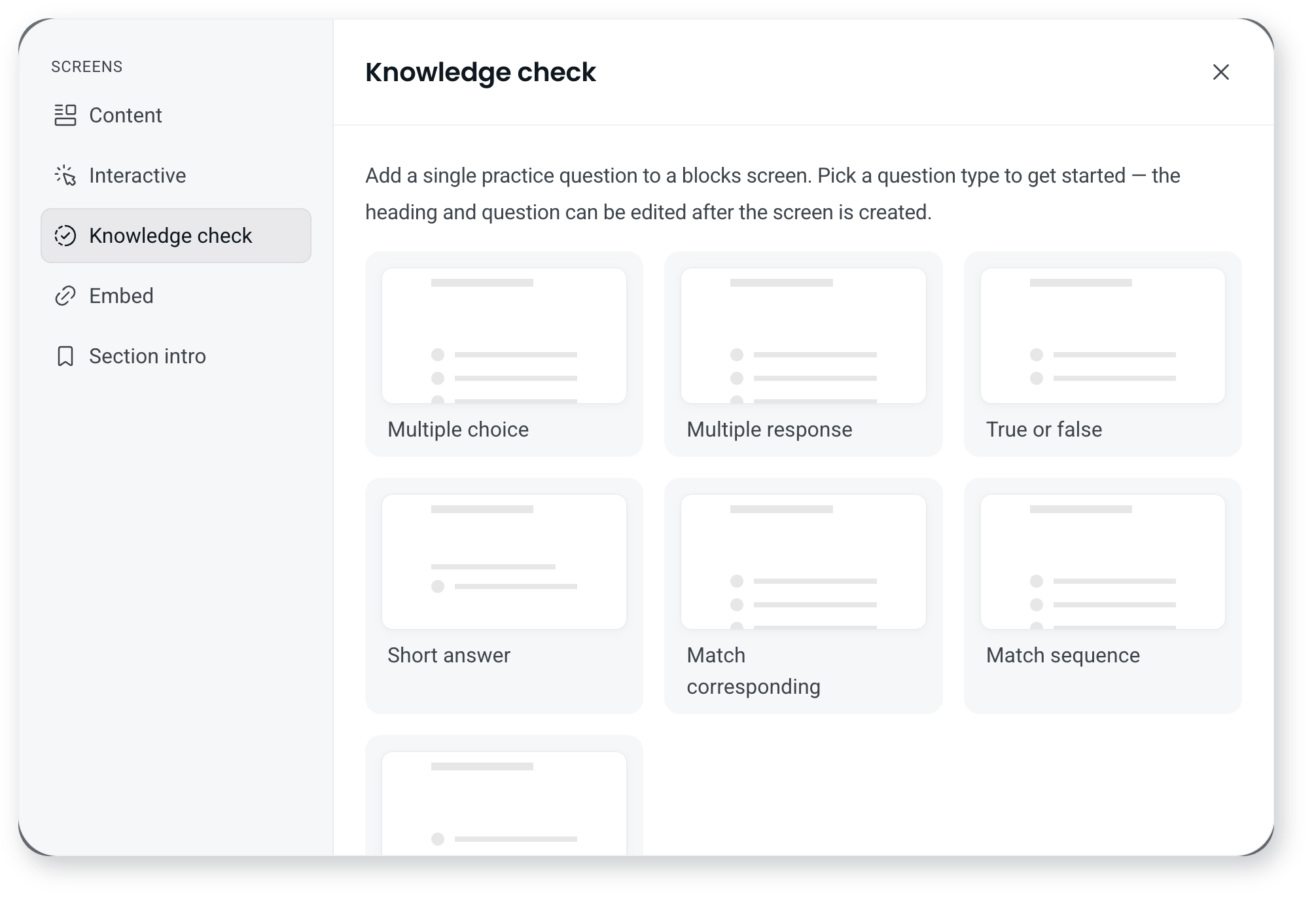
Add one by starting a screen from the Knowledge check layout and picking the question type, or by adding a question block to a screen you have already built. You can also pin questions to a video so it pauses for each one: start from the Video with questions layout, or select Video questions on a video's toolbar. Because any block can sit on any screen, a single screen can carry an explanation, an image and a question together.
Scored quizzes
A scored quiz is its own section in the course, sitting alongside your content sections and numbered with them. It holds questions only, opens with a cover, presents one question at a time to the learner, and ends with a results screen. Use it for a test or a final assessment.
There are two ways to add one, and both go through the agent:
- Click Generate quiz. It sits at the bottom of a section, next to Add new section. Clicking it opens the agent with the prompt already written: Generate a quiz section for this course. Use the current course content unless I provide specific questions. Send it as it is, or edit the message first to ask for a set number of questions, particular question types, a focus on one part of the course, or your own questions and answers.
- Ask the agent yourself. Type the request in the agent instead of using the button, with the same kind of instructions.
Either way the quiz generates once you submit, and you can edit every question afterwards.
The section opens with a cover screen carrying the quiz title, the number of questions, a short description you write, and the Start quiz button learners press to begin. Each question is then its own screen, numbered Q1, Q2 and so on.
To add another question, click the + between two screens. A placeholder shows where the new question will sit. Select any question to edit it or delete it, and reorder questions the way you would any other screen.
To change how the quiz behaves, select its first screen, the cover, and click Quiz options in the toolbar at the bottom:
- Quiz scoring: turn scoring on or off. With it on you set a passing grade as a percentage, and a number of retries, or tick Allow unlimited retries so learners can keep going until they pass.
- Shuffle question order: questions are shuffled into a unique order for each participant.
- Case sensitive answers: participants must match the exact capitalisation you enter. This only applies to short answer questions.
These settings decide whether a learner can finish the course. With scoring on, someone who doesn't reach the passing grade hasn't passed, and that blocks course completion. How many chances they get is the number of retries you set, so if completion matters more than the score, allow unlimited retries or set the passing grade somewhere they can reach it.
Question types
There are seven auto-graded question types, and they're the same for a knowledge check and a scored quiz. A mix keeps engagement high.
| Question type | What the learner does |
|---|---|
| Multiple choice | Selects one answer from a list |
| Multiple response | Ticks all correct answers |
| True / False | Decides if a statement is true or false |
| Short answer | Types an exact word or number |
| Fill in the blank | Completes a sentence using dropdown menus |
| Match corresponding | Pairs items by selecting their counterpart |
| Match sequence | Puts items in the correct order |
You can change a question from one type to another, for example from short answer to multiple choice, without rebuilding the screen around it.
Can I change the feedback learners see?
Yes. Every question block carries its own feedback messages, which you edit from the Feedback messages menu in the question toolbar.
- Correct response: the message shown when a learner answers correctly, and the label on the button that moves them on, which is Continue unless you change it.
- Incorrect response: a separate message for each wrong answer option, so you can address the particular misconception behind the option they picked rather than telling everyone the same thing.
Both come with default wording, so feedback works out of the box and you only write your own where it's worth it.
What else can the agent do with questions?
As well as generating a whole quiz section, the agent can insert a single knowledge check on a screen, rewrite a question you already have, or turn questions and answers you paste in into question blocks. You can edit everything it produces.
The agent inside the builder, including Generate quiz, is available on all current plans, but not on some legacy plans. Those plans can still create a course with Create with agent, but can't ask the agent to add or change questions once the course is created.
How do quizzes work in the Classic builder?
In the Classic builder a quiz is a screen type. You add a Quiz screen and choose to generate the quiz with AI or start from scratch. Starting from scratch gives you an empty quiz with a start and finish section you can customise or hide.
- Unscored quizzes are for practice and reinforcement. Learners answer each question correctly to move on, with unlimited attempts, and no formal grade is recorded.
- Scored quizzes are assessments. They give learners a score, let you set a passing grade and a number of reattempts, and determine whether someone passes the course.
A start section introduces the quiz and shows how many questions it has. A finish section wraps it up. With scoring on, you can set three finish states, passed, retry, and failed, each with its own message.
On unscored quizzes you can customise the feedback learners see for correct and incorrect answers, including the message, imagery, and button text. Question feedback is available when scoring is switched off.
Courses built this way carry a Classic badge in your course library.
Frequently asked questions
Can I create a quiz on its own, outside a course?
No. A scored quiz is a section within a course, so it lives inside a course rather than as a standalone item.
Can a question sit on a normal screen?
Yes. A question block on an ordinary screen is how you build a knowledge check, and it doesn't need to be part of a quiz.
Can a scored quiz hold other content?
No. A scored quiz section holds questions only. If you want a question alongside an explanation or an image, use a knowledge check on an ordinary screen instead.
Can I set a passing grade?
Yes. Turn Quiz scoring on in Quiz options and set the passing grade as a percentage, along with how many retries a learner gets.
Can I write different feedback for each wrong answer?
Yes. The Incorrect response part of the Feedback messages menu gives every wrong option its own message, so a learner who picks option A can be told something different to one who picks option B.
Can I ask for a specific number of questions?
Yes. Edit the agent message before you submit it and say how many questions you want, along with anything else that matters, such as the question types or the part of the course to draw from.
What happens if someone fails a scored quiz?
They can't complete the course. Whether that's the end of it depends on your settings: they can try again as many times as the number of retries allows, and unlimited retries means they can keep going until they pass. This works the same way in the Classic builder.