Interactive videos
How to pin questions to moments in a video so it pauses for learners to answer, and how those questions behave as learners watch.
How do I add questions to a video?
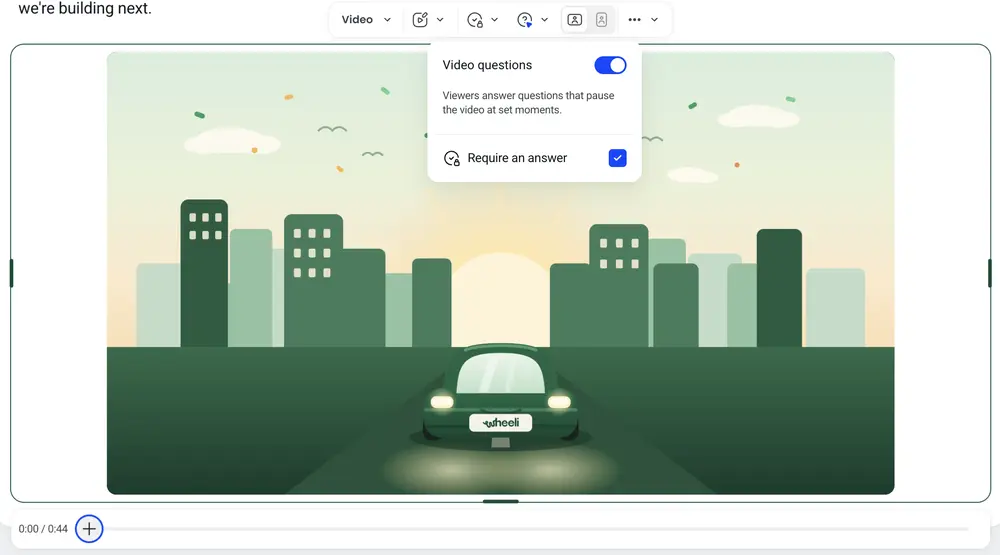
Select the video block, choose Video questions on its toolbar and switch it on. Then move to a moment on the timeline, click + and pick a question type. The video pauses at that moment and the learner answers before it carries on.
You can pin questions to uploaded, YouTube and Vimeo videos on content screens in the new builder. Use them to check understanding partway through a video, so learners stay focused instead of watching passively.
How do I set it up?
- Add a video: start a screen from the Video with questions layout under Knowledge check layouts, add an Interactive video block, or use a video block already on the screen.
- Select the video block and open Video questions on its toolbar.
- Switch on Video questions.
- Play or scrub the video to the moment you want. The + on the timeline follows the playhead.
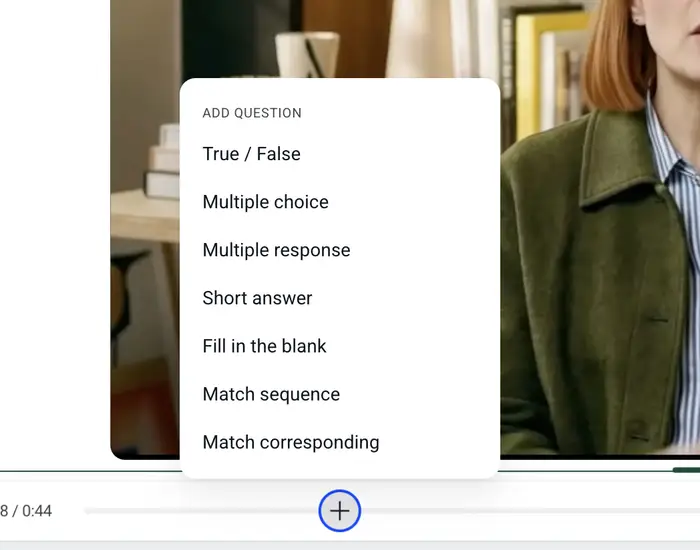
- Click + and choose a question type.
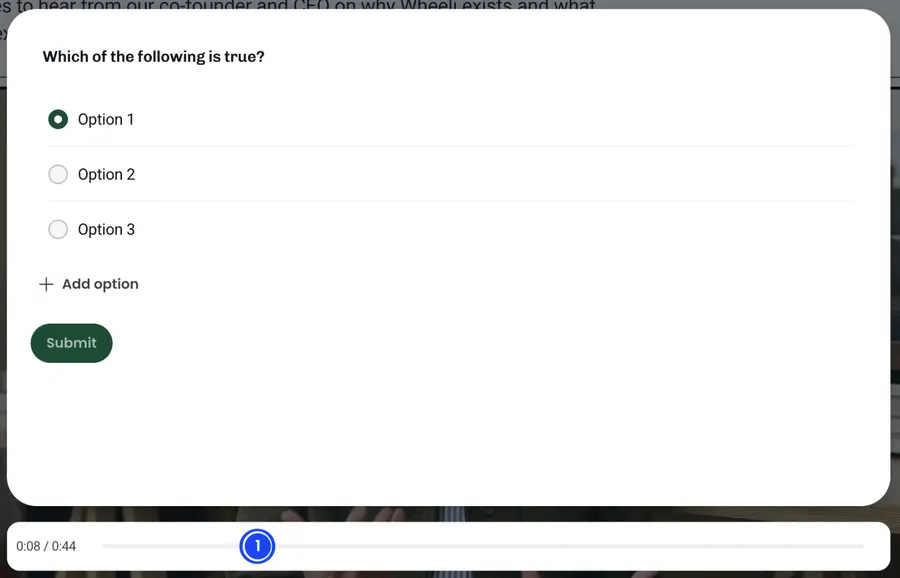
- Write the question and its answers.
If + is greyed out, play the video once so its length is known, then add your question.
Each question shows as a numbered marker on the timeline. Select a marker to edit the question, change its time or delete it.
Which question types can I pin to a video?
Seven types:
- True / False
- Multiple choice
- Multiple response
- Short answer
- Fill in the blank
- Match sequence
- Match corresponding
Can learners skip a question?
That depends on Require an answer, which is in the Video questions menu and is on by default. The setting covers every question on that video.
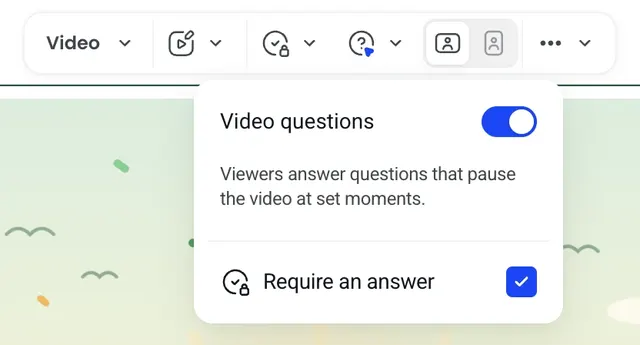
- On: the learner has to answer correctly to carry on. A wrong answer offers Try again. If they close the question without answering, the video stays paused there and the question opens again when they press play. The screen stays locked until they've answered.
- Off: each question shows a Skip button, and skipped questions don't hold the learner back.
What happens if a learner skips ahead in the video?
If they jump past one or more questions, each one they passed comes up in turn before the video resumes. A question that's been answered or skipped isn't asked again, even if they rewind.
To stop learners skipping ahead at all, also turn on Enforce completion for the video. They can still rewind, but they have to watch through to the end.
Frequently asked questions
Can I add questions to a Loom recording?
No. Video questions work with uploaded, YouTube and Vimeo videos only. A Loom recording can't host them, and the Record tab isn't shown on a video block that has questions turned on.
Can I add video questions inside a quiz?
No. Video questions are knowledge checks on content screens. They aren't part of a scored quiz section and don't count towards a quiz score.
How close together can questions be?
At least two seconds apart. If you try to add one closer to an existing question, the timeline tells you it's too close.
What happens if I replace the video with a shorter one?
Questions pinned after the new video's end are taken off the timeline and shown under a warning. Choose Move into video to bring them back inside the video, or Delete question to remove them. Learners are never shown a question that sits past the end.
Can the AI assistant add video questions?
Yes. Ask the AI assistant in the builder to add questions to a video and it pins them for you.
Are learners' answers recorded?
Yes. Every answer to a video question is recorded, including skipped questions.