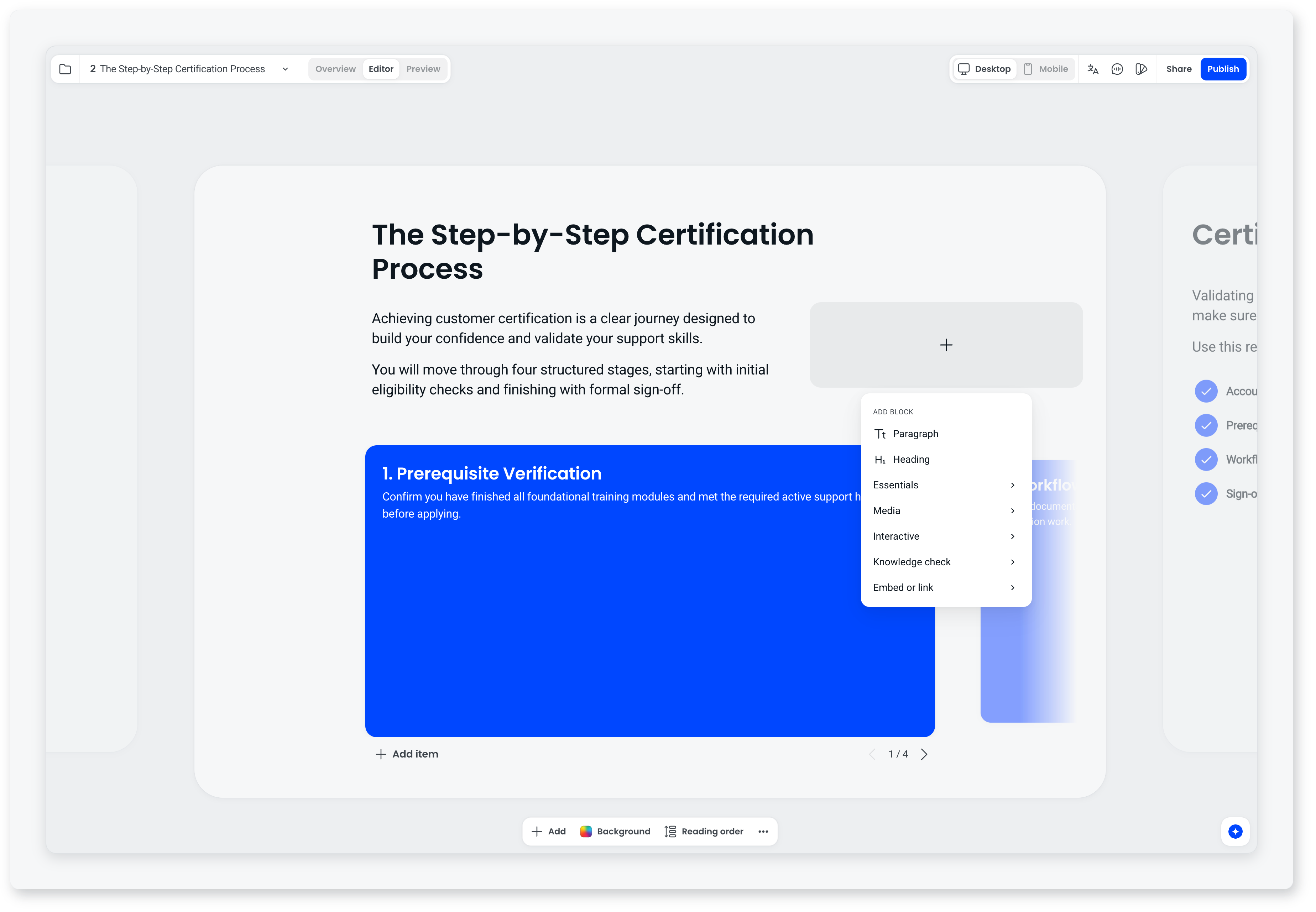
What are blocks?
What blocks are, the full set you can add to a screen, and how you arrange them.
A block is a single piece of content on a screen: a heading, an image, a table, an accordion, a quiz question. You build each screen by adding blocks and arranging them on a six column grid, rather than choosing a screen type and fitting your content into it. Any block can sit on any screen, so one screen can carry an explanation, an interactive element and a knowledge check together.
How is this different from the Classic builder?
In the Classic builder, the screen type decided everything. If you wanted an accordion you chose the accordion screen, and that screen was an accordion and nothing else. Your content had to fit the shape of the type you picked.
Blocks invert that. You start with a screen and put whatever the content needs on it. An accordion is now one element you can place next to a paragraph, an image and a question, at whatever width you want.
What blocks can I use?
Text and structure
- Heading: the screen title and any sub-headings within the screen, with proper heading levels. You can set a font on a single heading from its toolbar, outside your theme's set, with a one-click reset back to the theme font.
- Paragraph: body text, including bulleted and numbered lists, bold, italics and links. Like headings, a paragraph can take a font outside the theme set, with a reset back.
- Table: rows and columns with a proper header row, for comparisons, specifications and reference data.
- Chart: a column, bar, line, pie or donut chart built from figures you type in, or paste to the agent, for numbers, trends and comparisons. You choose the colours, labels and number format.
- Button: a call to action on the course's start or finish screen.
Media
- Image: uploaded, chosen from your image library, generated with AI, or from a URL, with alt text and an optional caption. You can reposition an image inside its block: drag to choose which part shows and zoom in up to 3x, with the rest of the image shown faded so you can see what sits outside the frame.
- Video: uploaded or embedded, set to landscape or portrait, with captions on either. On an uploaded video you choose the caption language and upload an SRT or WebVTT file. Video hosted on YouTube or Vimeo carries the captions set on those platforms. Portrait suits footage shot on a phone or filmed for social, so vertical video sits in a vertical frame rather than being letterboxed into a wide one.
- Audio: an inline player for an uploaded audio file, or generated narration.
Interactive
- Accordion: expandable sections with a title and content each, good for FAQs and reference material.
- Checklist: checkable items, good for steps and procedures.
- Process: sequential steps, each with its own title and content.
- Flashcards: flip cards with a front and a back.
- Slideshow: a set of images a learner moves through.
- Hotspot: points on an image a learner selects to reveal more.
- Interactive video: a video that pauses at set moments for the learner to answer a question. Questions can be required, or optional with a Skip button. You can also turn this on for any uploaded, YouTube or Vimeo video with Video questions in the video toolbar.
Images inside process, flashcard and slideshow cards can be repositioned the same way as a standalone image block.
Hotspot is available as a block, and the block picker also carries a Hotspot layout under Interactive. Hotspot screens in courses you have already built in Classic are unaffected and keep working as they do today.
Documents and embeds
- Document: an embedded document a learner can read on the screen.
- Embed: external content or an iframe, for anything that lives on another site.
Questions
Question blocks come in seven types: multiple choice, multiple response, true or false, short answer, fill in the blank, match corresponding, and match sequence.
Each question block carries its own feedback messages, edited from the Feedback messages menu in the question toolbar. You set the message a learner sees when they answer correctly and the label on the button that moves them on, and you set a separate message for each wrong answer option, so the response can address the particular misconception behind the option they picked.
How do I arrange blocks on a screen?
Screens use a six column grid. You place a block, set how many columns wide it should be (a minimum of two), and drag it where you want it. Blocks can sit side by side or stack down the screen.
The grid is what keeps courses looking designed rather than assembled. You are choosing where things go within a structure, not placing elements freely on a blank canvas, so spacing and alignment stay consistent across every screen in the course.
Do I have to build every screen from scratch?
No. Every screen starts from a layout, which gives you a pre-arranged set of blocks, and you can change anything afterwards. When you add a screen, the Screens picker groups layouts six ways:
- Content: text, images and video. Layouts include Title + text, Title + text split, Title + 2 columns, Title + 2 columns + image, Banner + 3 columns and Title + 3 columns.
- Interactive: Checklist, Accordion, Numbered list, Acronym, Flashcards, Process, Hotspot and Interactive video.
- Chart: a screen built around a chart. Column chart, Line chart, Text + donut and Two charts.
- Knowledge check: a single practice question on a screen, where you pick the question type to start from, or Video with questions, which pins questions to a video.
- Embed: Large embed left, Text + Embed right and Full document.
- Section intro: an emphasised cover screen that opens a section. Title, Title + image left, Title + image right, Image banner + title, Title + Image banner and Image behind.
A layout is a starting point rather than a fixed shape. You can add, remove and reorder blocks once the screen exists, and swap the layout itself with the Layout button in the screen toolbar.
How do blocks work on mobile?
Every course adapts to smaller screens automatically, and you can control how. Switch from Desktop to Mobile at the top of the builder and you can:
- Reorder blocks to change how they stack on a narrow screen, which may not be the order that makes sense on a wide one.
- Hide a block from mobile entirely, so a wide table or a decorative image does not have to squeeze onto a phone.
Images keep the shape you set rather than stretching to the full width of the phone, and you can resize one from its bottom edge.
You cannot edit block content in the mobile view. It is for reordering and visibility only, so the words stay the same everywhere.
How does assessment work with blocks?
There are two different things here, and picking the right one matters:
- A knowledge check is a question block on an ordinary screen, usually with a heading above it. Use it to check understanding as you go. It is not scored. A screen holds one knowledge check, and you can add any other block alongside it.
- A scored quiz is its own section in the course. It opens with a cover screen carrying the quiz title, the question count and a Start quiz button, then gives each question its own screen, and ends with a results screen. Each question screen can also carry a paragraph, heading, table, chart, image, video or audio block. Use it for a test or final assessment.
Select the quiz cover screen and click Quiz options to set how the quiz behaves: turn Quiz scoring on and set a passing grade and a number of retries (or allow unlimited retries), shuffle the question order so each participant gets a unique sequence, and make short answers case sensitive.
What do blocks mean for accessibility?
Two things worth knowing:
- Headings give a screen its structure. A heading block is the screen title, and it gives assistive technology what it relies on to navigate. It is not required on every screen, but a screen carrying real body text without one is something the agent's Review tab flags.
- You control the reading order. You can set the order blocks are read in by screen readers, narration and keyboard navigation, using Reading order in the screen toolbar. This matters when the visual arrangement does not match the order things should be read.
Tables use proper header rows, and list content uses list-shaped blocks such as checklists and accordions rather than bullets typed into a paragraph, so the underlying structure is real rather than visual.
Frequently asked questions
Can any block go on any screen?
Yes, with two limits. On an ordinary screen, mix content, media, interactive elements and a question as the content needs, with one knowledge check per screen. On a scored quiz question screen, you can add a paragraph, heading, table, chart, image, video or audio block alongside the question.
Can I put a question on a normal screen?
Yes. A question block on an ordinary screen is how you build a knowledge check, and it does not need to be part of a quiz.
Can I change a block into a different type?
You can swap blocks out and rearrange them freely while you build. Questions are the exception worth knowing about: you can change a question from one type to another, for example from short answer to multiple choice, without rebuilding the screen around it.
Can I use a font that isn't in my theme?
Yes, on a single heading or paragraph. Select the block and pick a font from its toolbar. Weights sit in their own menu, and a reset option puts the block back to the theme font.
Can I add captions to a video block?
Yes. Open the Video menu, choose Captions, pick the language your captions are in, and upload an SRT or WebVTT file. Captions aren't generated for you, so the file has to come from you. Video embedded from YouTube or Vimeo carries the captions set on those platforms.