How do I change a course by asking the agent?
How to use the AI agent inside the builder to rewrite, restructure and add to a course you have already built.
The AI agent stays with you in the builder after a course is built, so you describe the change you want and it makes it. Ask it to rewrite a paragraph, add a screen, drop the reading level, insert a knowledge check or reorder a section, instead of hunting through menus for the setting that controls it.
Nothing is locked in once a course exists. If the tone is wrong, the screens are in the wrong order or the quiz is too easy, you say so and it changes.
Where do I find the agent?
There are four ways to reach it, and which one you use depends on how much you want to change:
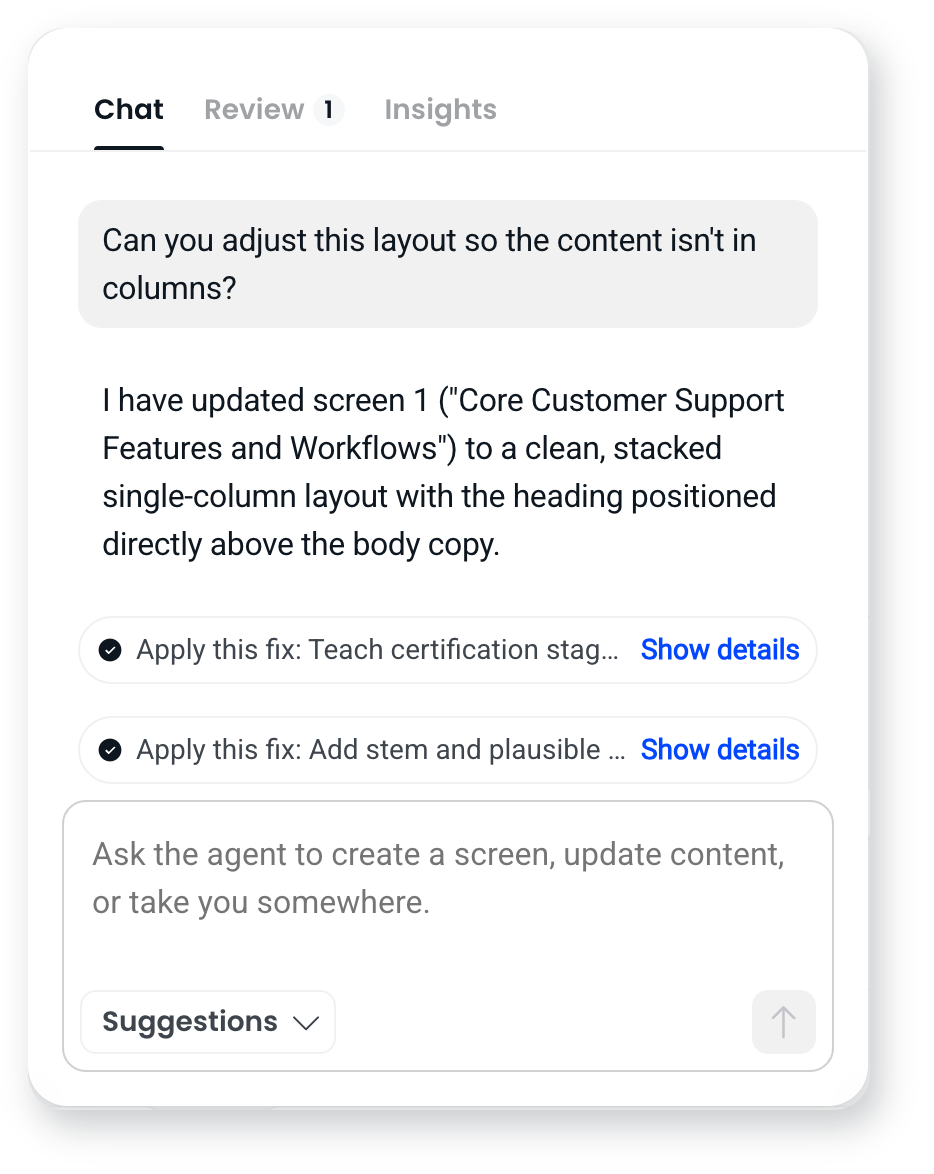
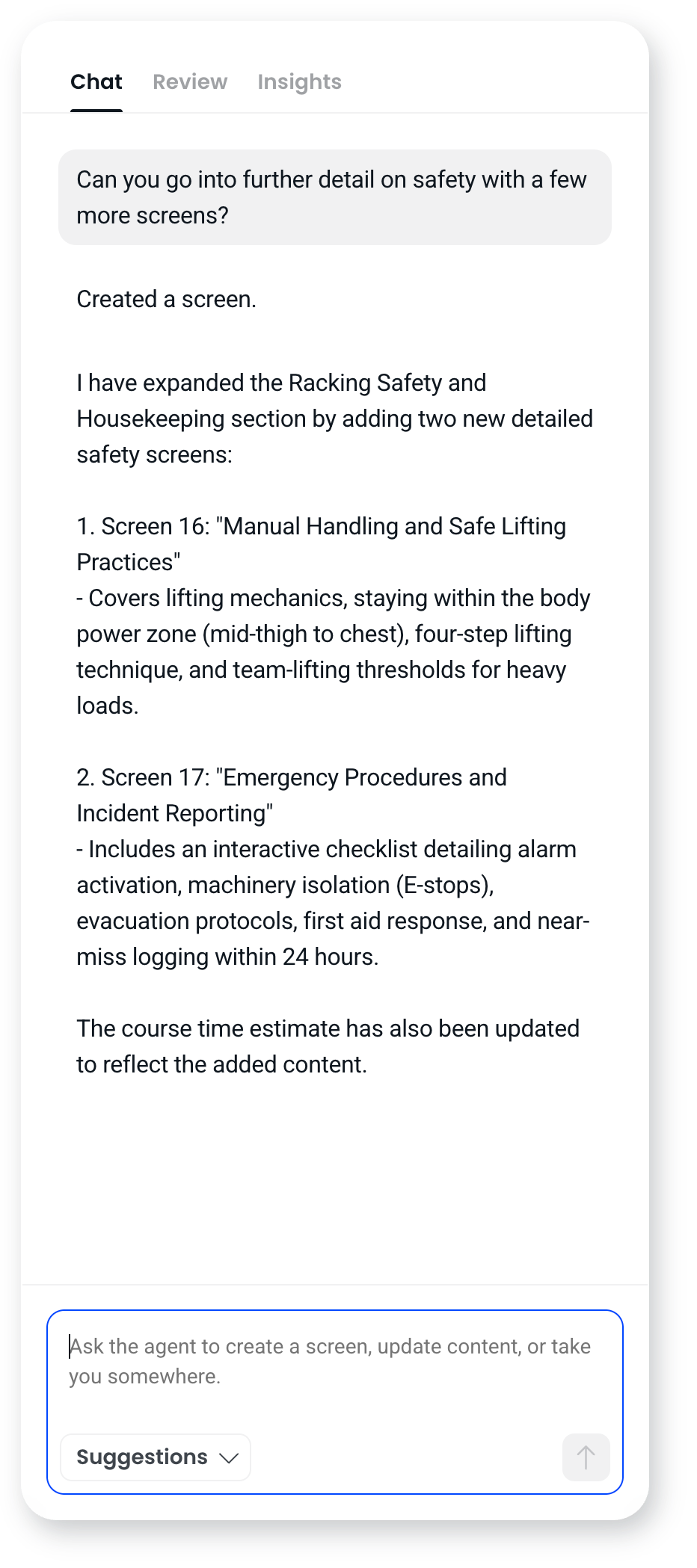
- The agent button in the bottom right corner of the builder opens the panel. The Chat tab is where you type what you want, and it's the place to start for anything that affects more than one screen.
- The Suggestions menu in the chat box gives you the common requests as ready-made shortcuts, so you don't have to think of the wording yourself.
- Refine buttons on a block's toolbar act on that block. Select a paragraph, ask for it shorter, and only that paragraph changes.
- Refining text inside a block. Select the words you want changed and the block toolbar switches to a refining toolbar while you work.
What is in the Suggestions menu?
Open Suggestions under the chat box and you get the common requests, grouped by what they do. Picking one is the same as typing the request yourself, so treat them as a starting point you can then talk about rather than fixed commands.
Create
- Generate a screen
- Generate a knowledge check
- Generate flashcards
- Generate a quiz
Edit
- Update screen content
- Change layouts
Refine
- Make it clearer
- Adjust tone
Organise
- Reorder screens
Navigate
- Go to a screen
What can I ask it to do?
Write and rewrite
- Add a screen on a topic you've missed.
- Rewrite wording that isn't landing, or shorten a screen that runs long.
- Change the tone, or drop the reading level for a different audience.

Add assessment
- Insert a knowledge check where you want to check understanding.
- Generate a scored quiz from the course content.
- Give it your own questions and answers to use.
- Add a question to a video at a set time, so the video pauses and asks it.
Restructure
- Reorder screens.
- Split a section, or reshape the course into different sections.
- Remove screens you no longer need.
Find your way around
- Ask it to take you to a screen, rather than scrolling the course to find it. Useful in a long course when you know what a screen is about but not where it sits.
What's still faster to do yourself?
Some things are quicker with the controls in the builder than by describing them:
- Mobile layout. Switch from Desktop to Mobile at the top of the builder to reorder blocks for a narrow screen, or hide one from mobile entirely.
- Image framing. Reposition an image inside its block by dragging it, and zoom in up to 3x, with the rest of the image shown faded so you can see what sits outside the frame.
- A one-off font. Pick a font outside your theme's set directly from a heading or paragraph toolbar, with a one-click reset back to the theme font.
Can it use our own images rather than generating new ones?
Yes. If your images are tagged in your workspace asset library, ask for images with a particular tag and the agent places them. It uses the alt text your team wrote on each asset, which is better alt text than anything generated. It won't use the same image twice while unused matches are available.
If nothing in your library matches the tag you asked for, the agent tells you and stops. It doesn't quietly generate something instead, because asking for a specific tag means you wanted specific images.
Will it tell me what needs fixing?
Yes. That's the Review tab in the agent panel. It reads the whole course and lists what needs attention, with a suggested fix on each item that you can apply or dismiss. It catches things you'd have to already know to go looking for, such as images with no alt text, a reading level above the audience you set, or a quiz question where one of the wrong answers is obvious enough that the question isn't testing anything.
The third tab, Insights, reads your course analytics, so you can ask where learners are dropping off and fix the screen in the same conversation.
Is the agent available on my plan?
The agent inside the builder is available on all current plans, but not on some legacy plans. On those plans you can still use the new builder and create a course with Create with agent. What isn't available is asking the agent to change the course once it's created. The agent button, the refine buttons on block toolbars and the quiz generation shortcut don't appear. Everything else in the builder works normally, so you can still build and edit courses by hand.
Frequently asked questions
Do I have to use the agent to edit a course?
No. Every screen is editable directly. Add blocks, move them, rewrite the text and change the styling yourself, and never open the agent if you'd rather not.
Can I ask for a change to one screen without affecting the rest?
Yes. Use the refine buttons on the block or select the text you want changed, and the change is scoped to that block. Open the agent conversation when you want something that spans screens or sections.
Does it work in my language?
Yes. Write to the agent in French and the whole conversation happens in French, including its questions and its summary of what it did. This is separate from the language your course is written in, so you can work in your own language on a course written in another.