AI image generation
How to generate a custom image from a description, the styles available, and how generation uses your image generation allowance.
Generate a custom image from a description anywhere you can add or replace an image, choosing a style, then pick from four options.
You can generate a custom image with AI anywhere you can add or replace an image in a course, so you don't have to go searching for the right photo. Describe what you want, choose a style, and pick from the options AI creates.
Generate an image
- Open the image picker:
- To add a new image, select Add an image, then choose Generate.
- To replace an existing image, select the image, choose Replace image, then Generate.
- Describe the image you want. More detail gives a better result.
- Choose a style: Auto, Photo, Cinematic, Drawing, Vector, or Painting.
- Select Generate. You'll get four options.
- Pick one and select Done, or choose Try again to refine your description or style.
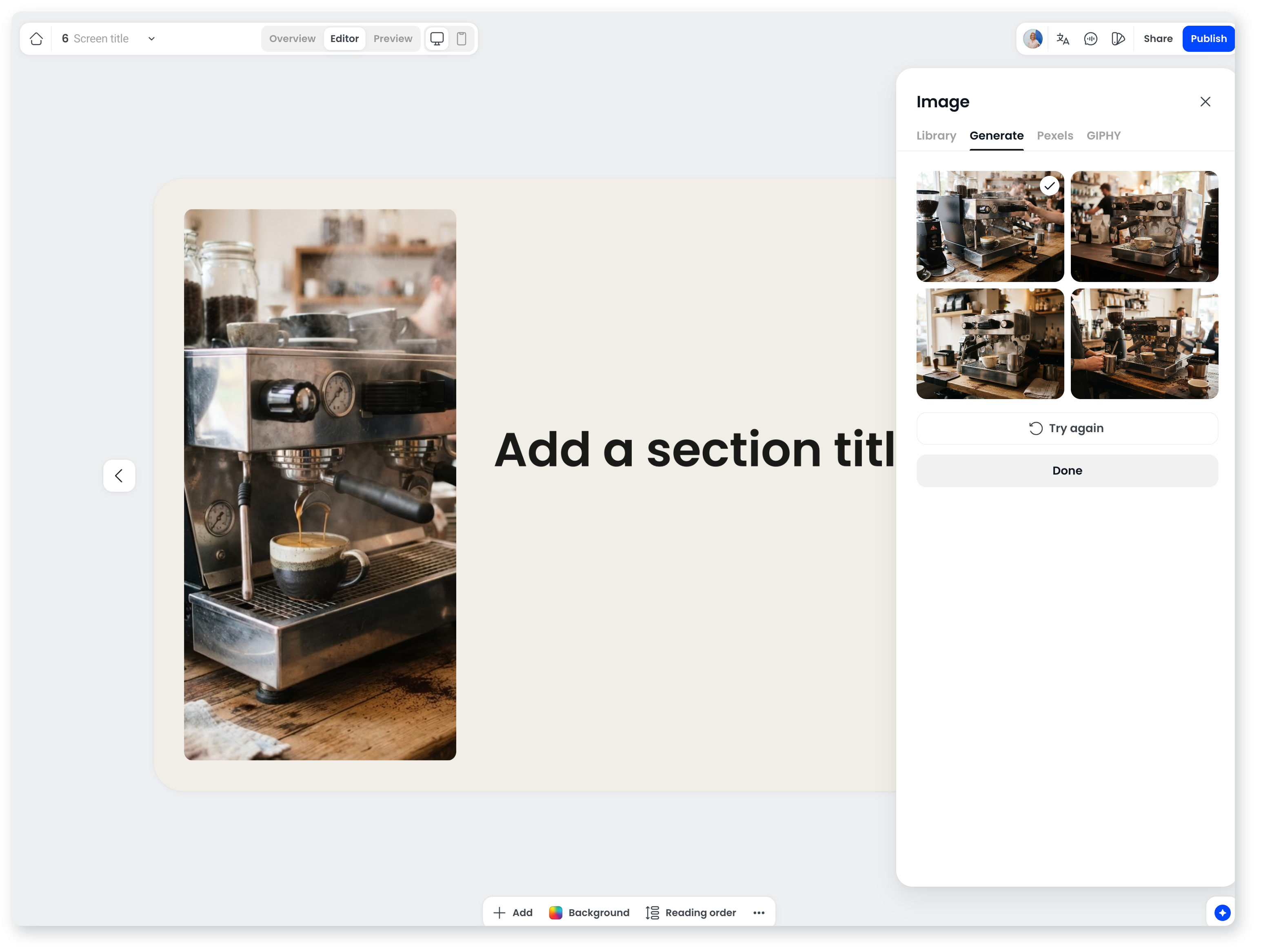
Chosen generated images are saved to your image library, so you can reuse them across courses just like uploaded images.
Generation follows your description and style, and leaves out anything you've excluded in your brand voice.
How generation uses your allowance
Each generation produces a set of options and counts as one image generation event against your allowance. The AI image window shows your usage as you go, so you can see where you're up to before generating another set. Try again counts as another generation, so it's worth putting the detail into your description first.
When the agent builds a course, it fills image placeholders from your image library first, then generates images within your allowance. You can turn this off with Generate images during course creation in Brand voice. Otherwise, images are only generated when you ask for them.
When the agent generates images across a course, the builder marks which screen it's illustrating so you can follow along.
Frequently asked questions
What image styles can I choose?
Auto, Photo, Cinematic, Drawing, Vector, or Painting.
What if I don't like the results?
Select Try again to refine your description or style and generate a new set of options. Each set counts as one image generation event against your allowance.
Does Coassemble generate images automatically?
Only when the agent builds a course. It fills image placeholders from your image library first, then generates images within your allowance. Turn off Generate images during course creation in Brand voice to stop this.
Where do generated images go?
They're saved to your image library, ready to reuse in any course.