Create a course
The ways to create a course in Coassemble: with the agent, from scratch in the new builder, by uploading a SCORM package, or with the Classic options.
Open New course at the top of your library and pick the route that matches what you're starting with. The fastest way to a full draft is Create with agent. You can also build it yourself from scratch, upload an existing SCORM package, or use the Classic options. Whatever you pick, you refine the result afterwards.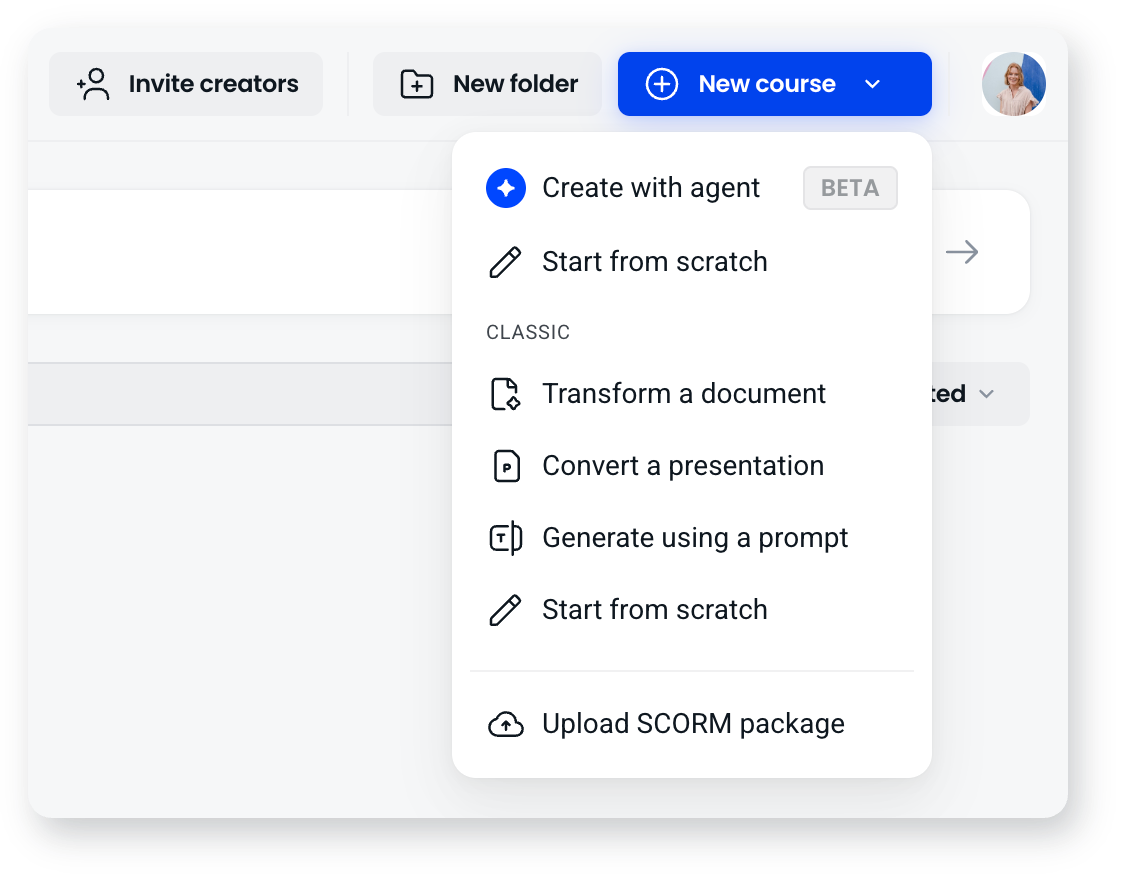
Every route here is available on every plan.
Create with agent
Describe what you need in plain language, or give the agent your own material to work from: a document, a presentation, or a SCORM package. The agent asks a few questions about your audience and how you want the course to read, then builds it as screens grouped into sections.
When you give it a single document or a SCORM package, it also asks how closely to follow your source:
- Verbatim: keeps your wording exactly as written, for policies, compliance and anything already approved.
- Structured: reorganises your material into a clear learning flow, keeping the content itself.
- Adaptive: rewrites and expands your material into a fuller course.
It doesn't ask this for a prompt on its own, or when you upload several documents at once.
This is usually the quickest route, because you get a complete course to react to rather than a blank one to fill. Everything it produces is editable.
Start from scratch
Build the course yourself in the new builder. Adding a screen opens the layout picker, so you choose a design and start with placeholder content already in place, then swap, arrange and restyle the blocks on it. Screens group into sections, which learners see as chapters with their own progress. You can also control separately how each screen stacks on a phone.
This gives you the most control and works well when you know exactly what you want.
Upload a SCORM package
You can host an existing SCORM package in Coassemble exactly as it was authored. It appears in your library as a course card with a SCORM label and an editable cover image, and there's an explicit processing state while the package extracts.
You get attempt-level reporting on how learners go: attempts, time spent, success and score, attempts compared side by side, question-level results you can export as a CSV, and the option to grant an extra attempt to a learner who is genuinely blocked.
To turn a package into an editable Coassemble course instead of running it as it is, upload it through Create with agent. Hosting and converting are both open to every workspace. Coassemble converts packages from Articulate Rise and Storyline, Adobe Captivate and iSpring, carrying across text, images, galleries, flashcards, process steps, accordions and knowledge checks, and listing anything that couldn't be converted rather than dropping it silently.
Classic options
The Classic group in the New course menu holds the earlier creation methods. These build in the classic builder, which uses fixed screen types rather than the grid.
- Transform a document: turn a document you already have into a course. Built-in AI reads your content and breaks it into screens. There's a 50MB file size limit for document transformation.
- Convert a presentation: turn existing slides into a course, so you can reuse a deck you've already built rather than starting over.
- Generate using a prompt: describe your topic and let AI generate a structured course. You set the audience, tone, and length, then review the outline before it builds. If the first outline isn't quite right, use Regenerate to create a different version.
- Start from scratch: build screen by screen in the classic builder, choosing a screen type for each one.
After you've created a course
However you start, you refine everything afterwards: edit text, swap images, add or reorder screens, or ask the agent to make the change for you. Your work autosaves as you go, and undo and redo are there when you need them.
On some legacy plans, the agent isn't available inside the builder once a course is created, so you make changes yourself.
Frequently asked questions
Which method is fastest?
Create with agent. It gives you a full draft to refine rather than a blank course, whether you start from a prompt or from your own files.
Can I keep my source wording exactly as it is?
Yes. Choose Verbatim when the agent asks how closely to follow your source.
What's the difference between hosting a SCORM package and converting one?
Hosting runs the package exactly as its original tool built it. Converting turns it into an ordinary Coassemble course you can edit through Create with agent. Both routes are open to every workspace.
What's the difference between the two Start from scratch options?
The one at the top of the New course menu builds in the new builder, which uses layouts, content blocks and sections. The one inside the Classic group builds in the classic builder, which uses fixed screen types. Pick the new builder unless you specifically want screen types.
Can I change the content after AI builds it?
Yes. Everything AI generates is fully editable, you can rewrite text, replace images, and add, remove, or reorder screens.
What file types can I transform?
You can transform PDFs, Word documents (.doc, .docx), PowerPoint files (.ppt, .pptx), text files (.txt), and Rich Text Format (.rtf). Document transformation has a 50MB file size limit. For the best result, use well-structured, text-based files: headings and bullet points help the AI break your content into logical screens, and for PDFs use real text rather than scanned images.