Create from a document
How to turn a document you already have into a Coassemble course, and how to control how closely it follows your wording.
Upload your document to Create with agent, answer a few questions, and choose how closely the course should follow your source. The agent builds a course of screens grouped into sections, and you refine it afterwards.
Create the course with the agent
- From your dashboard, select New course, then Create with agent.
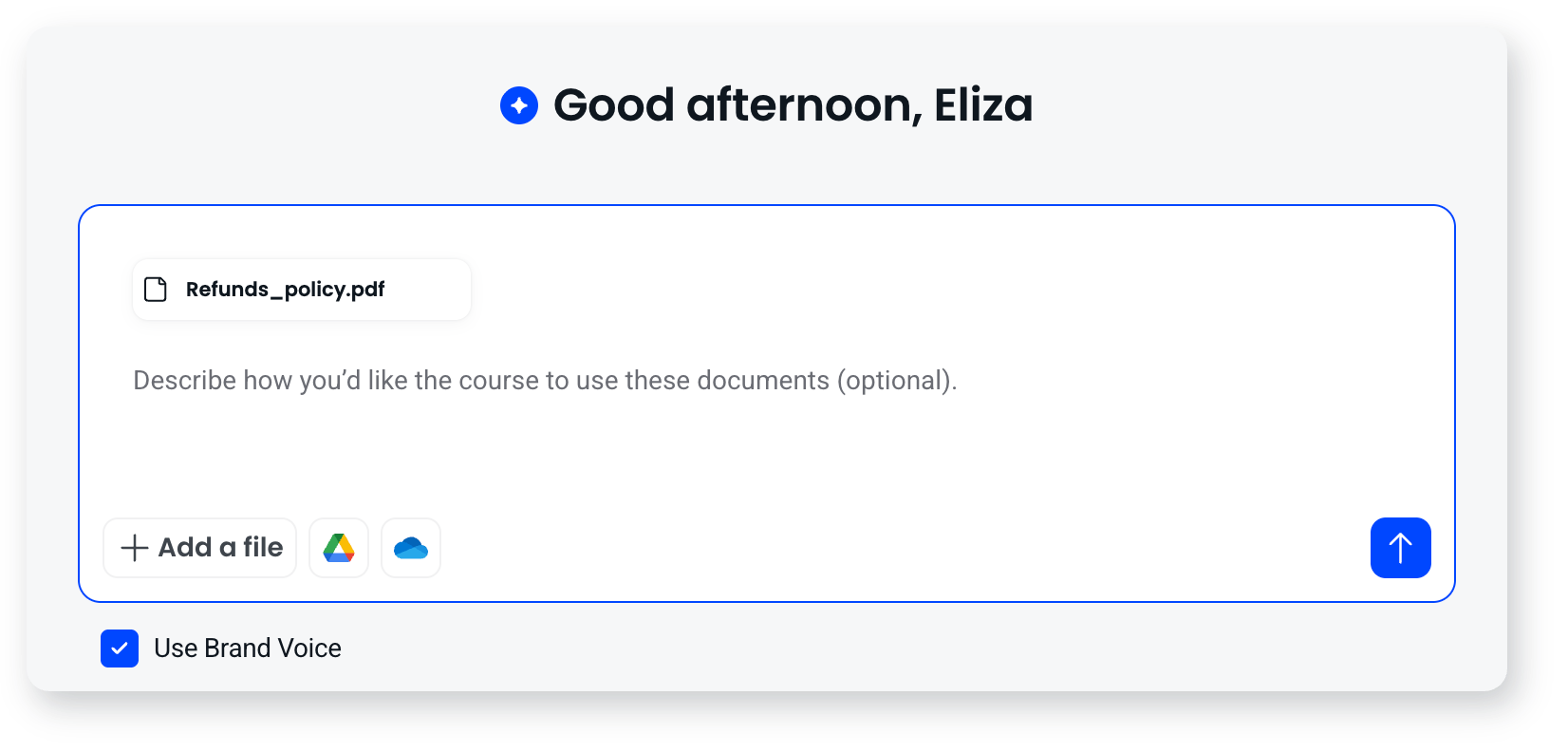
- Upload your document by dragging it in or selecting it. You can upload more than one, and add a prompt to give context.
- Choose how closely to follow your source when the agent asks. This question appears when you upload a single document.
- Answer the questions the agent asks about your audience, depth, learning outcomes, tone, assessment and language. It asks only what it needs and skips anything it can work out from your document.
- Review the summary of your choices and select Build course. If you chose Verbatim, the agent only asks whether to add a scored quiz at the end, then you select Convert to course. You watch it build, screen by screen.
How closely should it follow your document?
- Verbatim: keeps your wording exactly as written. Use it for policies, compliance content and procedures, where the exact phrasing matters.
- Structured: follows your document's outline and order, organising it into sections and a clear learning flow without dropping content.
- Adaptive: builds the course around your learning outcomes, using your document as supporting material. It can leave out parts that don't serve those outcomes and adds explanation and examples where they're needed.
The agent doesn't ask this when you upload several documents at once, because it has to combine sources rather than follow one.
Edit and publish
Once it's built, refine the content, images and design yourself, or describe what you want changed and let the agent do it. Publish when you're ready to make it live.
Transform a document (Classic)
The Classic builder has its own one-shot flow. From the New course menu, open the Classic group and select Transform a document. Upload your file, set the audience's familiarity (Beginners, Intermediate or Advanced), optionally add audience detail and a learning outcome, confirm the language, choose a tone (Informal & Conversational, Academic & Research-Based, or Motivational & Persuasive) and a screen-count range, and choose whether to include images from the document. Select Generate course outline, adjust the outline, then Create course.
Frequently asked questions
What file types can I use?
PDF, Word (.doc, .docx), PowerPoint (.ppt, .pptx), Apple Keynote (.key), text (.txt), and rich text (.rtf). Document transformation has a 50MB file size limit.
Will my document be copied word for word?
It can be. Choose Verbatim when the agent asks how closely to follow your source and your text is carried across as written. Choose Structured or Adaptive if you'd rather it reshaped the material.
Can I use more than one document?
Yes. Upload several documents and add a prompt to give context, and the agent merges them into one course. You won't be asked the fidelity question in that case.