Transfer ownership of your workspace
If you are the owner of a Coassemble workspace and need to transfer ownership to another member, you can do this directly from the Settings menu. This makes for a smooth handover when an owner leaves an organisation or needs to pass control to another team member.
Who can transfer ownership?
Only the current owner of the workspace can transfer ownership, and they can transfer it to any active member, whether they're an admin, creator or developer.
How to transfer ownership
Step 1: Go to the Settings menu
- Select Settings from the left-hand side of the screen
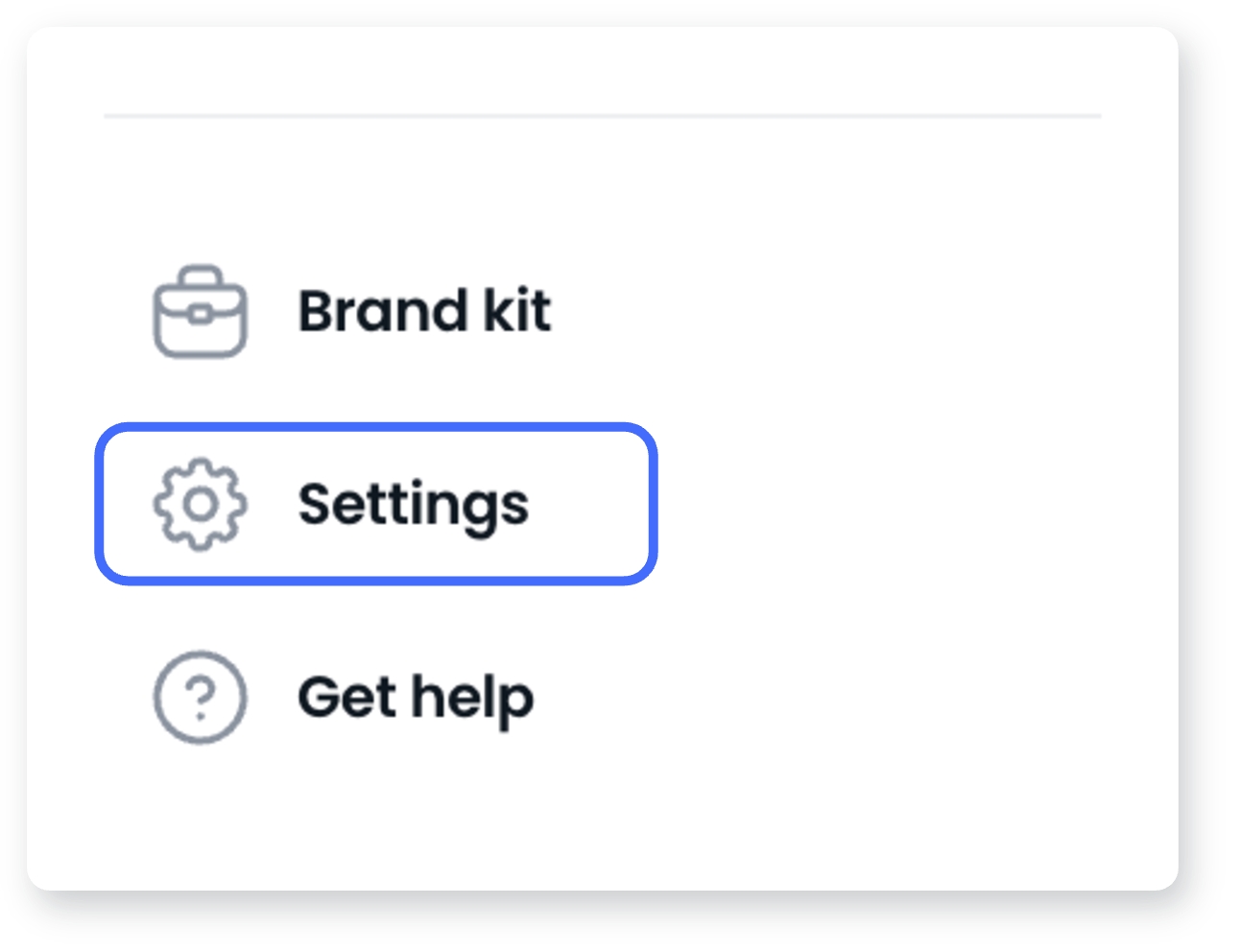
Step 2: Open Members
- In the Settings menu, under Workspace, select Members.
Step 3: Find the member you want to transfer ownership to
- Locate the active member in the Members list.
- Click the three dots next to their name.
Step 4: Initiate the ownership transfer
- Click "Transfer ownership to" from the menu. Note: If the selected member is inactive, this option will not be available.
Step 5: Confirm the transfer
- A confirmation window asks whether you're sure you want to transfer ownership to that member's email address, and warns that you will lose your permission to administer this workspace.
- Click "Transfer ownership" to proceed.
Step 6: Verify your email
- A new message asks you to verify your identity, and a verification code is sent to your email address.
- Retrieve the verification code from your email and enter it into the provided field.
- Click "Verify" to complete the process.
Step 7: Ownership transfer confirmed
- Once verified, the Verify button shows a tick and the window closes.
- The Owner label will now be assigned to the new owner.
- The previous Owner will lose administrative permissions.
See also: Members, for inviting people, changing roles and removing members.